









We tested WP Rocket 🚀- Here are the safe, recommended settings
I’ve spent years building WordPress themes and plugins, and I’ve tested countless optimization setups. This guide shares what actually works and does not cause issues like displaying cached content for logged in users or breaking theme functionalities.
Before We Start: Hosting Matters More Than You Think
Here’s something people don’t want to hear: no caching plugin will save a poorly hosted website. If you’re on cheap shared hosting, WP Rocket can only do so much.
That said, WP Rocket will still help on any hosting. It just works better when your foundation is solid.
How does caching work?
In short: it creates static copies of pages so when someone visits cached page he receives lightweight HTML page without need of processing requests to PHP/data base.
The flow is basically:
- First visitor hits a page → PHP runs, database queries execute, HTML is generated
- That HTML gets saved as a static file
- Next visitor hits the same page → server serves the static HTML directly, bypassing PHP and the database entirely
Why WP Rocket?
There are free alternatives like LiteSpeed Cache or WP Optimize. They’re decent. But WP Rocket saves you time with a clean interface and sensible defaults. It just works out of the box for most websites.
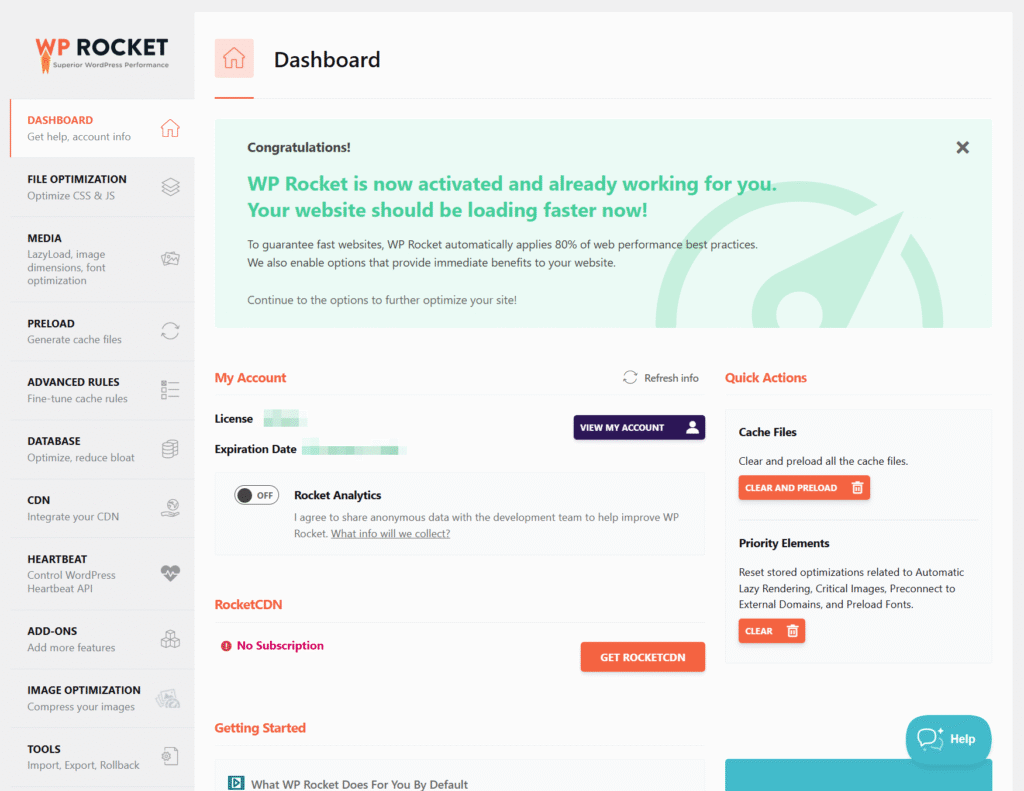
WP Rocket Settings That Actually Work
Let’s go through each section. I’ll tell you what to enable, what to skip, and why.
File Optimization

This is where WP Rocket minifies and combines your CSS and JavaScript files to reduce their size and the number of requests.
Enable these:
- Minify CSS files
- Minify JavaScript files
Be careful with these:
- Optimize CSS delivery: Test it first. If your site looks broken or you see a flash of unstyled content, turn it off. The small performance gain isn’t worth visual glitches.
- Combine JavaScript files: Enable it, but check your site afterward. Some plugins don’t play nice with combined scripts.
- Load JavaScript deferred: This can cause issues with certain scripts. Test thoroughly before leaving it on.
The rule of thumb: enable minification, but test everything else. Every WordPress site is different because everyone runs different plugins and themes.
Media Settings

This section handles how images and videos load on your pages. Lazy loading is your best friend here.
Enable all of these:
- LazyLoad for images
- LazyLoad for CSS background images
- LazyLoad for iframes and videos
- Add missing image dimensions
Lazy loading means images only load when visitors scroll to them. This dramatically improves initial page load time, especially on image-heavy pages.
The “missing image dimensions” option prevents layout shifts. Google’s Core Web Vitals care about this, and so should you.
Preload Settings

Enable:
- Activate Preloading
Optional:
- Enable link preloading: This downloads pages when users hover over links. Sounds great in theory, but it can hammer your server if you have a busy site. Test it, monitor your server load, and decide.
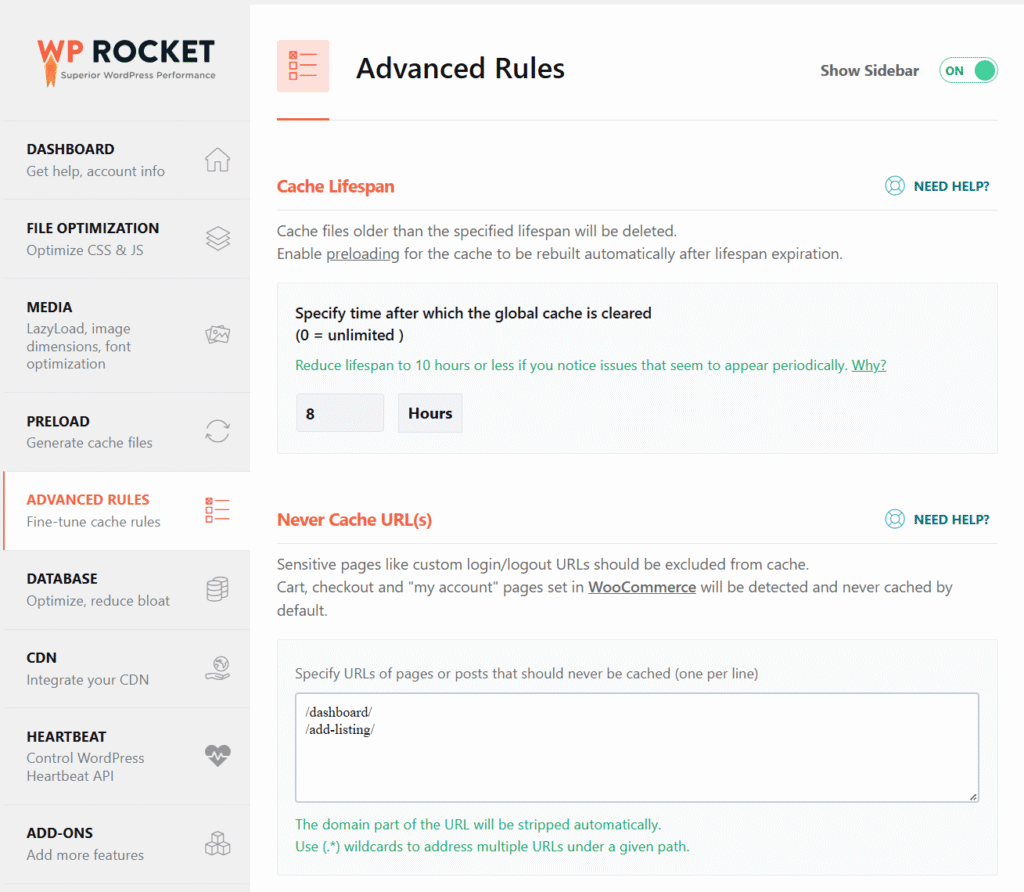
Advanced Rules
This section is often overlooked, but it’s crucial for dynamic websites.
Cache Lifespan: Set this to 10 hours or less. If you run a site where users log in frequently (membership sites, directories with booking systems), a shorter cache lifespan prevents weird issues with login sessions and dynamic content.
Never Cache URLs: For pages that must always be dynamic (like checkout pages, booking confirmations, or user dashboards), exclude them here.
Database Optimization

WP Rocket includes database cleanup tools. Use them regularly.
What to clean:
- Post revisions: WordPress saves every edit you make. After a while, you might have 50 revisions per post. That bloats your database.
- Transients: These are temporary data stored by plugins. Most sites start slowing down with 10,000+ expired transients.
- Spam comments and trashed posts: Just delete them.
You can set this to run automatically on a weekly schedule.
Heartbeat Control
WordPress Heartbeat API runs in the background and can slow down your admin panel, especially on shared hosting.
Enable: Control Heartbeat and set it to “reduce activity”
This cuts down unnecessary server requests while keeping essential features working.
CDN Settings
If your hosting already includes a CDN (Cloudflare, for example), you might not need WP Rocket’s CDN settings. However, if you’re using a separate CDN, configure it here.
Speaking of Cloudflare: use it. It’s free and reduces load times by serving cached content from servers closest to your visitors. There’s really no reason not to.
Image Optimization: Don’t Skip This
WP Rocket works great with Imagify (made by the same company) or EWWW Image Optimizer. Both compress images without noticeable quality loss.
Unoptimized images are often the biggest performance killer on WordPress sites. A single 3MB hero image can ruin all your other optimization efforts.
Stop Obsessing Over PageSpeed Insights
I need to say this: Google PageSpeed Insights scores are not everything.
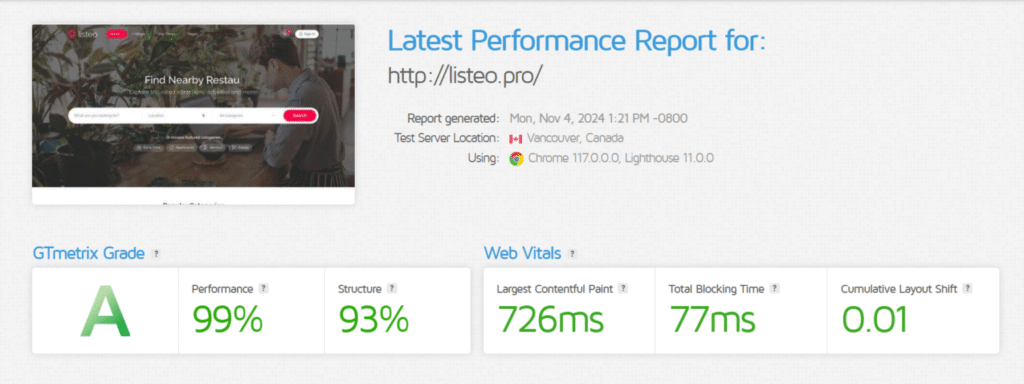
PageSpeed measures theoretical performance based on lab conditions. A score of 60 doesn’t mean your site is slow in the real world. I’ve seen sites scoring 50 that load faster (in actual user experience) than sites scoring 90.
Better tools for real-world testing:
These show you what actual users experience, which is what really matters.
Final Thoughts
WordPress optimization isn’t about enabling every setting and hoping for the best. It’s about understanding what each option does and testing the results.
Start with the safe settings I mentioned above. Test your site. Then gradually enable more aggressive optimizations while checking that nothing breaks.
And remember: good hosting, a quality theme, and not installing 50 plugins will do more for your speed than any caching plugin alone.
WP Rocket makes optimization easier, but it’s not magic. Combine it with solid fundamentals, and you’ll have a fast WordPress site that both visitors and Google will appreciate.
Want to Go Deeper?
This guide covers the essentials, but WordPress performance optimization is a rabbit hole. If you want to squeeze every last millisecond out of your site, check out this comprehensive tutorial: Speed Up Your Slow WordPress Site. It covers advanced techniques beyond what any caching plugin can do.