









How to Fill Your Directory Website with Real Businesses Fast (Bulk Import)

Launching a directory site with zero listings is a tough sell. Visitors land on an empty map and bounce. Business owners won’t claim listings if there’s nothing to claim yet. It’s the classic chicken-and-egg problem.
Good news: with Listeo, you have several ways to populate your directory with real, verified business data. Let’s walk through each method so you can pick what works for your situation.
The Four Ways to Add Listings in Listeo
Before diving into bulk imports, here’s the quick overview:
- Manual entry via WordPress admin
- Front-end submissions from business owners
- CSV/XML import using WP All Import
- Listeo Data Importer pulling directly from Google Places API
Manual entry works fine for 10-20 listings. Front-end submissions are great once your directory has traction. But when you need 500, 1000, or 5000 listings to launch? You need bulk import.
Method 1: Listeo Data Importer (The Fast Track)
This is the quickest way to populate your directory with legitimate business data. The plugin uses the official Google Places API to fetch real businesses and can generate SEO-friendly descriptions using OpenAI.
Plugin documentation: https://docs.purethemes.net/listeo/knowledge-base/listing-data-importer/
Video if you prefer to watch quick walk-through:
What Gets Imported
The free version pulls: business name, full address, coordinates, phone number, website, Google reviews, opening hours, photos, and Google Place ID. The Pro version adds AI-generated descriptions and batch imports up to 100 listings.
Setup Process
Step 1: Download the plugin from your PureThemes license page and install it like any WordPress plugin.

Step 2: Get your API keys. You need a Google Places API key (restrict it to your domain). Optionally, add an OpenAI key for auto-generated descriptions.
How to create Google API key?
How to create Open AI API key?

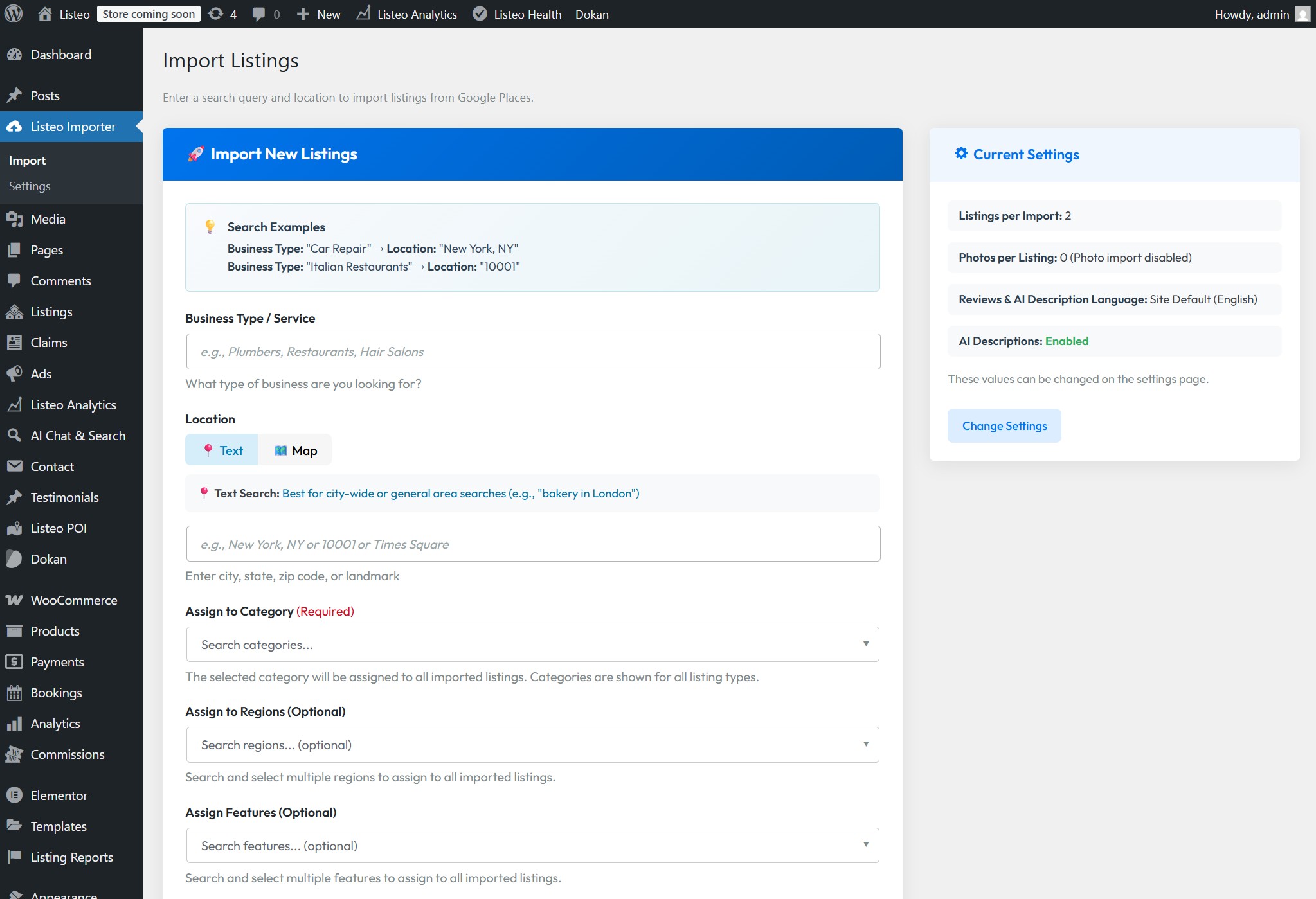
Step 3: Navigate to Listeo Importer > Import. Type what you want to find, like “Italian restaurants in Brooklyn” or “gyms in Denver.”
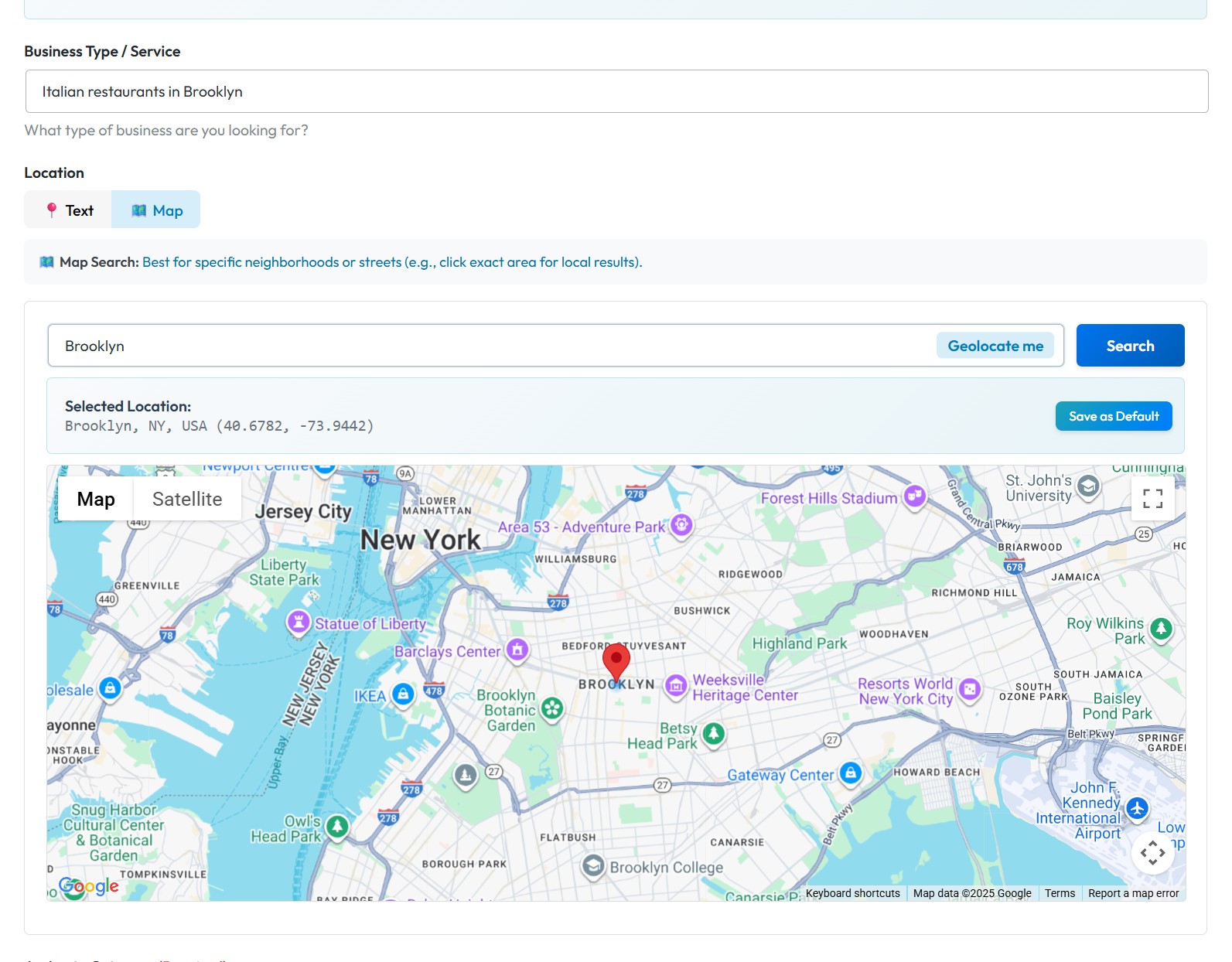
Step 4: Select location using text or map pin. Choose your category, region if needed, and hit Run Import. It handlers up to 100 listings per import but we recommend smaller batches + checking “Select data to import” – you will be able to verify listings by visiting their websites and remove specific businesses if they do not match your criteria.
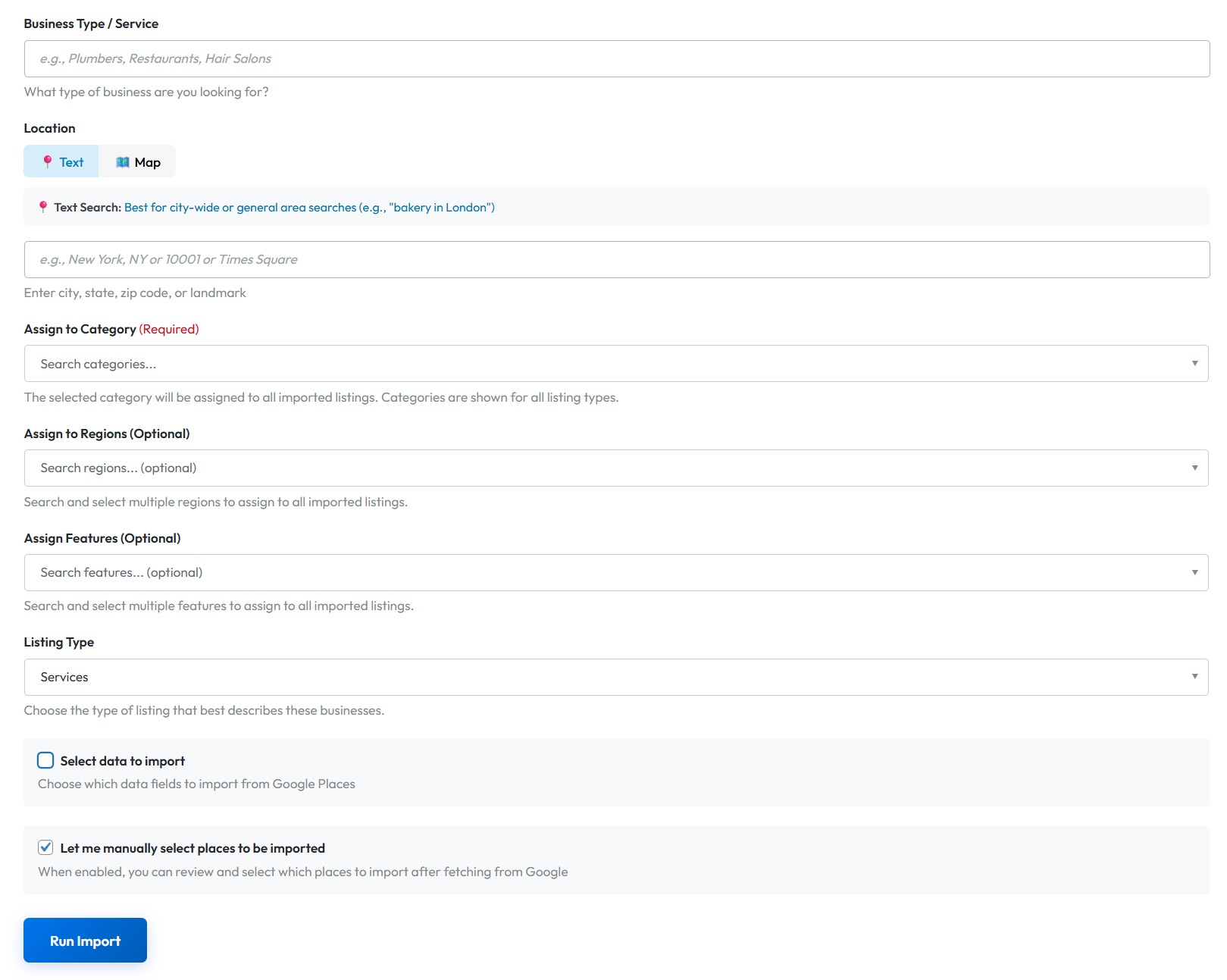
That’s it. The plugin fetches business data, downloads photos, and if you have OpenAI configured, writes unique descriptions for each listing. What would take 30 minutes manually happens in about 2 minutes (obviously on screenshots we do test import with 2 listings but you can import up to 100 per batch 😉).

Here’s result – nicely formateed listing with busines shours, SEO friendly description and pics.

Method 2: WP All Import (CSV/XML Files)
Already have a spreadsheet of businesses? Maybe you’re migrating from another theme, or you’ve collected data from a local chamber of commerce, or you have a purchased dataset? WP All Import is your tool.
Plugin Setup
- Install WP All Import from the WordPress plugin repository (free version works for basic imports)
- Download the Listeo Add-on from your PureThemes license page
- Install the add-on
Preparing Your CSV
There’s no strict template. Your file just needs rows (one per listing) and columns (one per data field). Common columns include: title, description, address, phone, email, website, latitude, longitude, category.
Essential fields for map functionality:
_address(full address string)_geolocation_lat(latitude)_geolocation_long(longitude)
Contact fields:
_phone_email_website
Opening hours require separate columns per day:
_monday_opening_hour,_monday_closing_hour_tuesday_opening_hour,_tuesday_closing_hour- …and so on

Running the Import
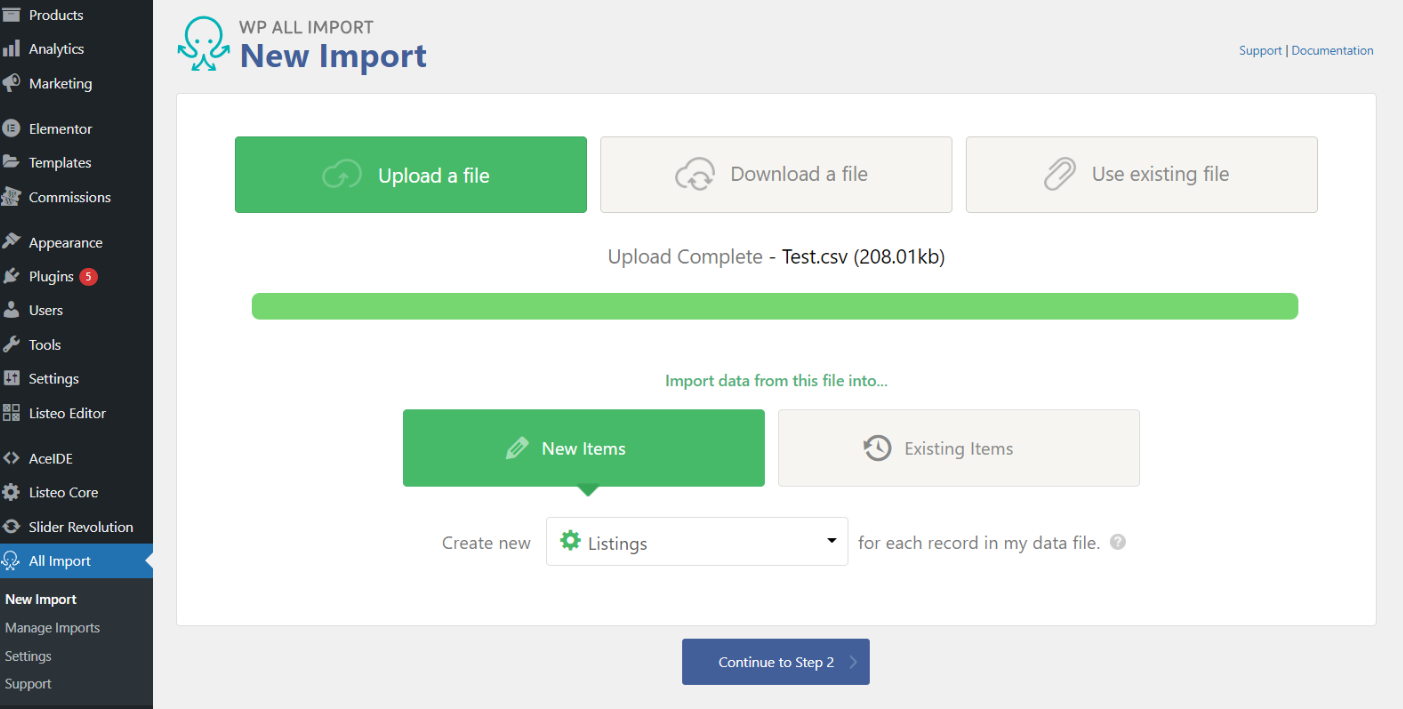
Upload your file and select “Listings” as the post type. WP All Import previews your data so you can verify columns are read correctly.
The drag-and-drop interface lets you map CSV columns to Listeo fields. Drag “Business Name” to Title. Drag “Description” to Content. Then expand the Listeo Add-On section to map address, phone, coordinates, and other listing-specific data.
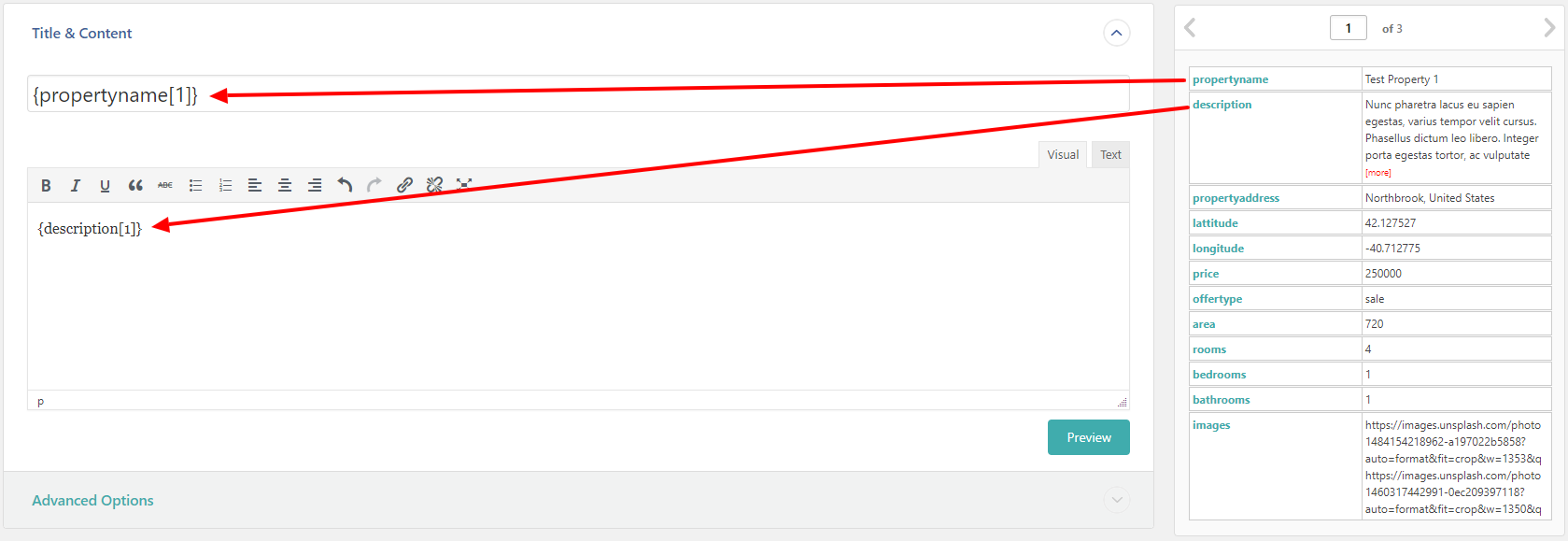
Set a unique identifier (Auto Detect usually works) and run the import. Start with a small batch of 5-10 listings to verify everything maps correctly before importing your full dataset.
Data Validation Before Import
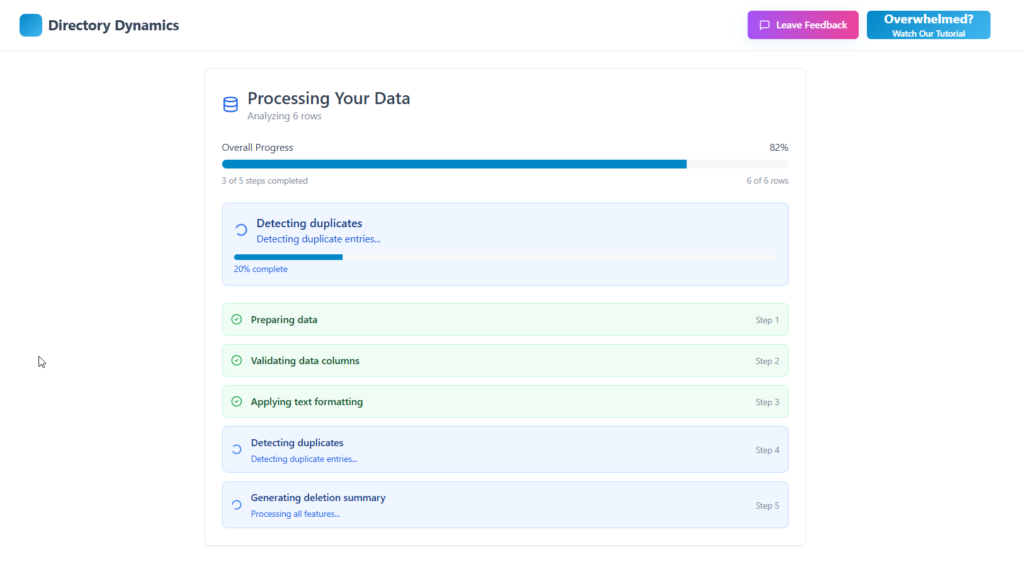
For large datasets, check out Directory Dynamics (directory-dynamics.com) which specializes in cleaning directory data before import.
Garbage in, garbage out. Before uploading that CSV:
Check coordinates: Invalid lat/long values mean listings won’t appear on the map. Latitude ranges from -90 to 90, longitude from -180 to 180.
Standardize phone formats: Pick one format and stick with it. “+1 (555) 123-4567” or “555-123-4567” but not both.
Verify addresses: Google’s geocoding is good but not magic. “123 Main St, NYC” might not resolve. “123 Main Street, New York, NY 10001” will.
Clean duplicates: Remove them in your spreadsheet before import. Easier than cleaning up in WordPress after.
Which Method Should You Use?
Use Listeo Data Importer when:
- You’re starting fresh with no existing data
- You want real, verified business information
- You’re okay with Google API costs
- You want AI-generated descriptions
Use WP All Import when:
- You have existing data in spreadsheets
- You’re migrating from another directory theme
- You have a purchased business database
- You need full control over what gets imported
Combine both: Use Data Importer to populate one city with restaurants, then use WP All Import to add your existing database of hotels.
After the Import: User Assignment
By default, all imported listings belong to the admin account. If you want business owners to manage their own listings, you have two options:
- Use the Claim Listing feature so owners can request ownership
- Use the Listeo Listing User Assign plugin to bulk-create user accounts based on listing emails
The second option is handy if your CSV includes owner email addresses. It creates users and assigns listings automatically.
Keeping Listings Updated
Google Reviews imported via Data Importer are cached for 48 hours and refresh automatically. This keeps you compliant with Google’s Terms of Service while minimizing API costs.
For recurring CSV imports (say, a weekly feed from a data provider), WP All Import Pro supports scheduled imports and can update existing listings without creating duplicates.
Final Thoughts
A directory with 500-1000 real businesses starts looking credible. It gives visitors something to browse, makes your search actually useful, and gives business owners a reason to claim and enhance their listings.
The Listeo Data Importer gets you there in an afternoon. WP All Import handles anything custom you throw at it. Use whichever fits your data source.
Questions? Drop them in the comments or check the Listeo documentation for detailed step-by-step guides on each method.