









How to Train AI Chatbot on WordPress Knowledge Base: Real Case Study
Turn Your WordPress Website Into an AI Assistant That Answers
We had a problem. Our WordPress theme Listeo has 130 documentation articles, and customers still kept opening support tickets asking questions already answered in the docs. Sound familiar?
Whether you’re running a SaaS company with a WordPress knowledge base, a WooCommerce store with product FAQs, a membership site with a help center, or selling digital products with setup guides, you’ve probably experienced the same thing. Your documentation has the answers. Users just can’t (or won’t) find them.
So we trained an AI chatbot on our WordPress knowledge base to handle customer support automatically. After 30 days: 482 conversations, 4,670 messages, and a significant drop in repetitive support tickets.
This case study shows how we set up an RAG-powered AI assistant for WordPress documentation, what questions it handled, and how you can do the same for any WordPress-based knowledge base.
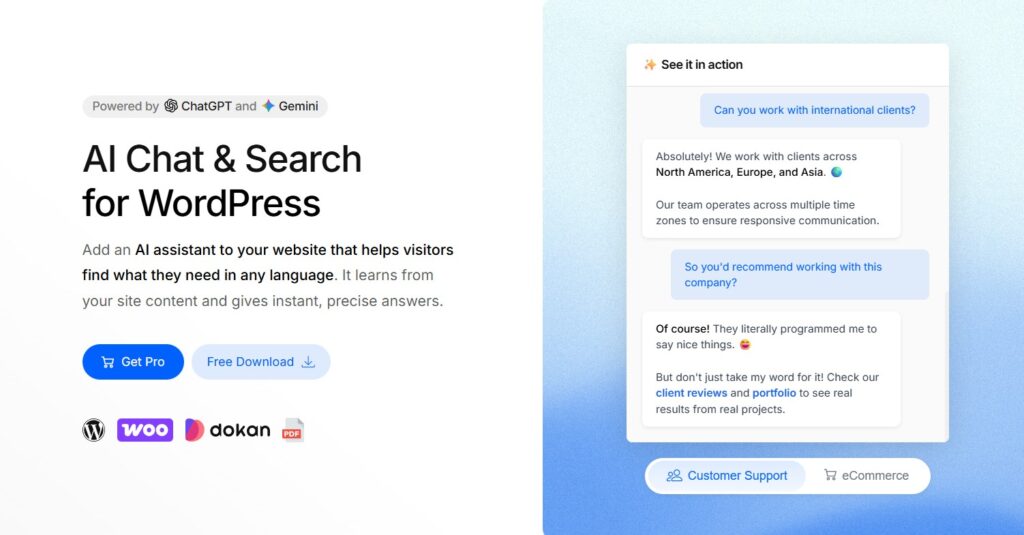
We used AI Chat & Search Pro – our own chatbot developed from the ground with WordPress users in mind. It works on any WordPress website.
Why We Needed an AI Assistant for Our WordPress Documentation
Listeo is a directory and marketplace WordPress theme with a lot of features: booking systems, payment gateways, custom fields, Elementor integration, Dokan support. We documented everything across 130 knowledge base articles.
But customers don’t search documentation. They want instant answers. That’s where an AI-powered knowledge base chatbot comes in.
But here’s the thing: customers don’t read documentation. Or more accurately, they don’t want to search through documentation. They want answers now.
This isn’t unique to WordPress themes. If you run:
- A SaaS product with WordPress-based docs
- A WooCommerce store with product FAQs and shipping policies
- An online course or membership site with how-to guides
- A software company using WordPress for your help center
- Any service business with a WordPress FAQ section
…you’re probably dealing with the same problem. The documentation exists. Nobody reads it. 😅
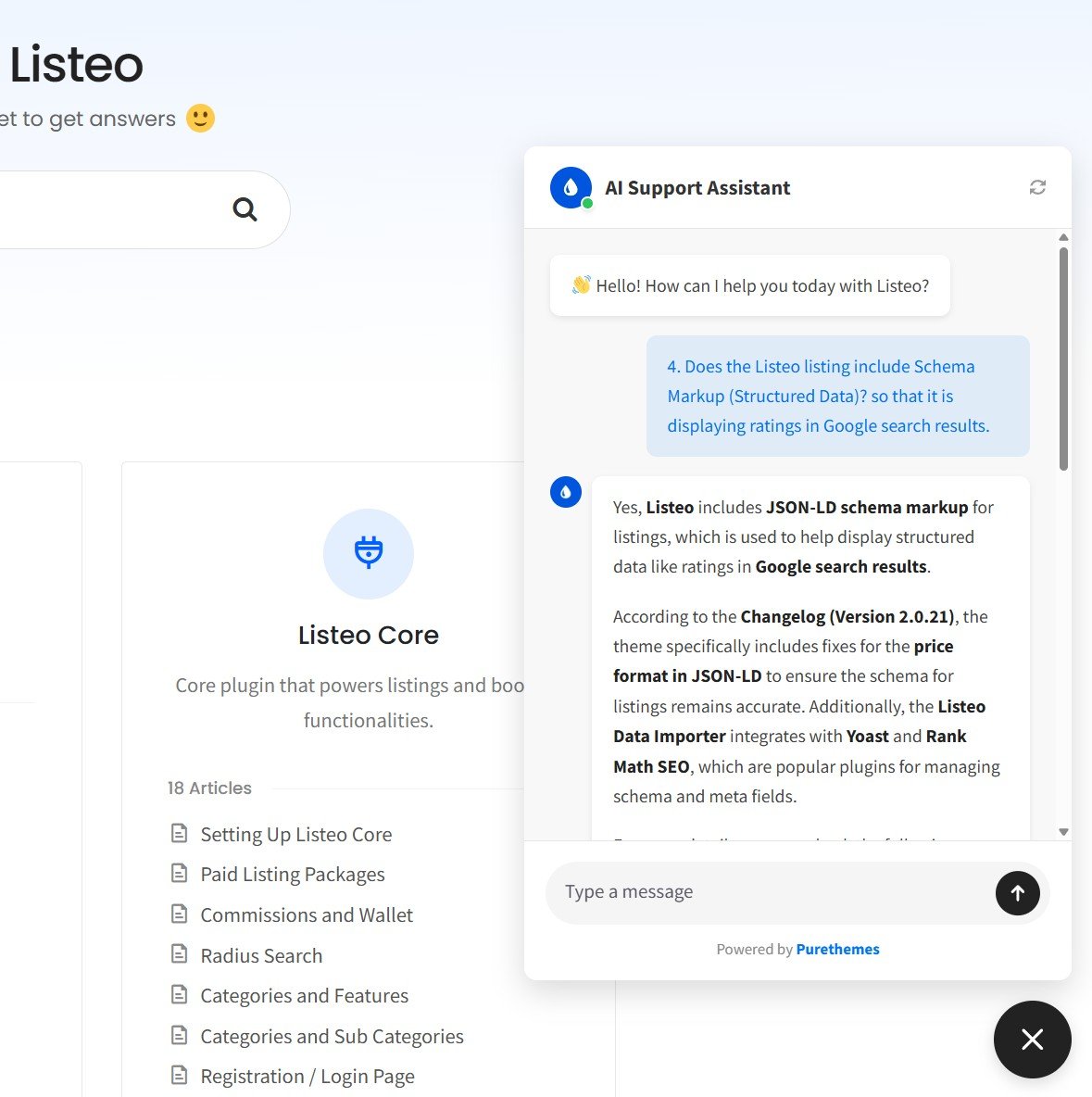
Want to test it yourself? Try it on our docs here →
Before the chatbot, our typical support flow looked like this:
- Customer has a question
- Customer maybe tries the search bar (maybe)
- Customer doesn’t find the answer immediately
- Customer opens a support ticket
- We respond with a link to the documentation article that answers their question
- Repeat 50 times per week
We were essentially acting as human search engines. That’s not a good use of anyone’s time.
The 10-Minute Setup Process
Here’s the part that surprised us most: setting up the chatbot took about 10 minutes. Not hours. Not days. Ten minutes. Here’s the quick overview but if you need check full step-by-step tutorial here:
We used our own AI Chat & Search Pro plugin (yes, we eat our own dog food), but the process is similar for any RAG-based WordPress chatbot:
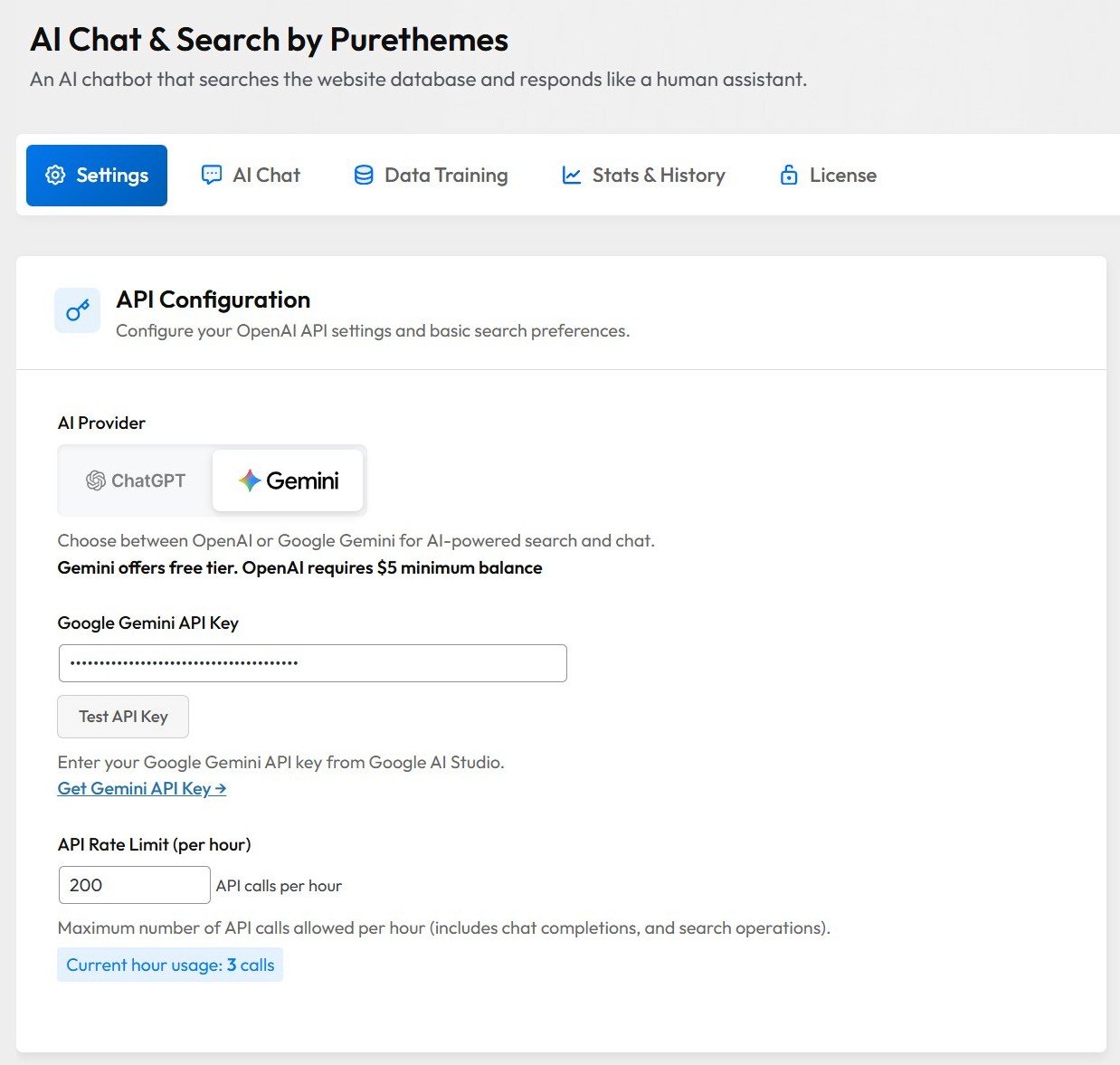
Step 1: Install the plugin and add an API key
Download AI Chat & Search →
We went with Gemini 3 Flash model – it’s fast and offers superb context understanding at low cost. You can also use GPT if you prefer. The API key setup takes about 1 minute.
Step 2: Select content to train on
Here’s where the knowledge base training happens. We pointed the plugin at our 130 Listeo documentation articles. The plugin scans each article and creates vector embeddings, which is basically a searchable index that the AI uses to find relevant content when answering questions.
AI Chat & Search handles custom post types, so if your website/knowledge base use CPT – no problems.
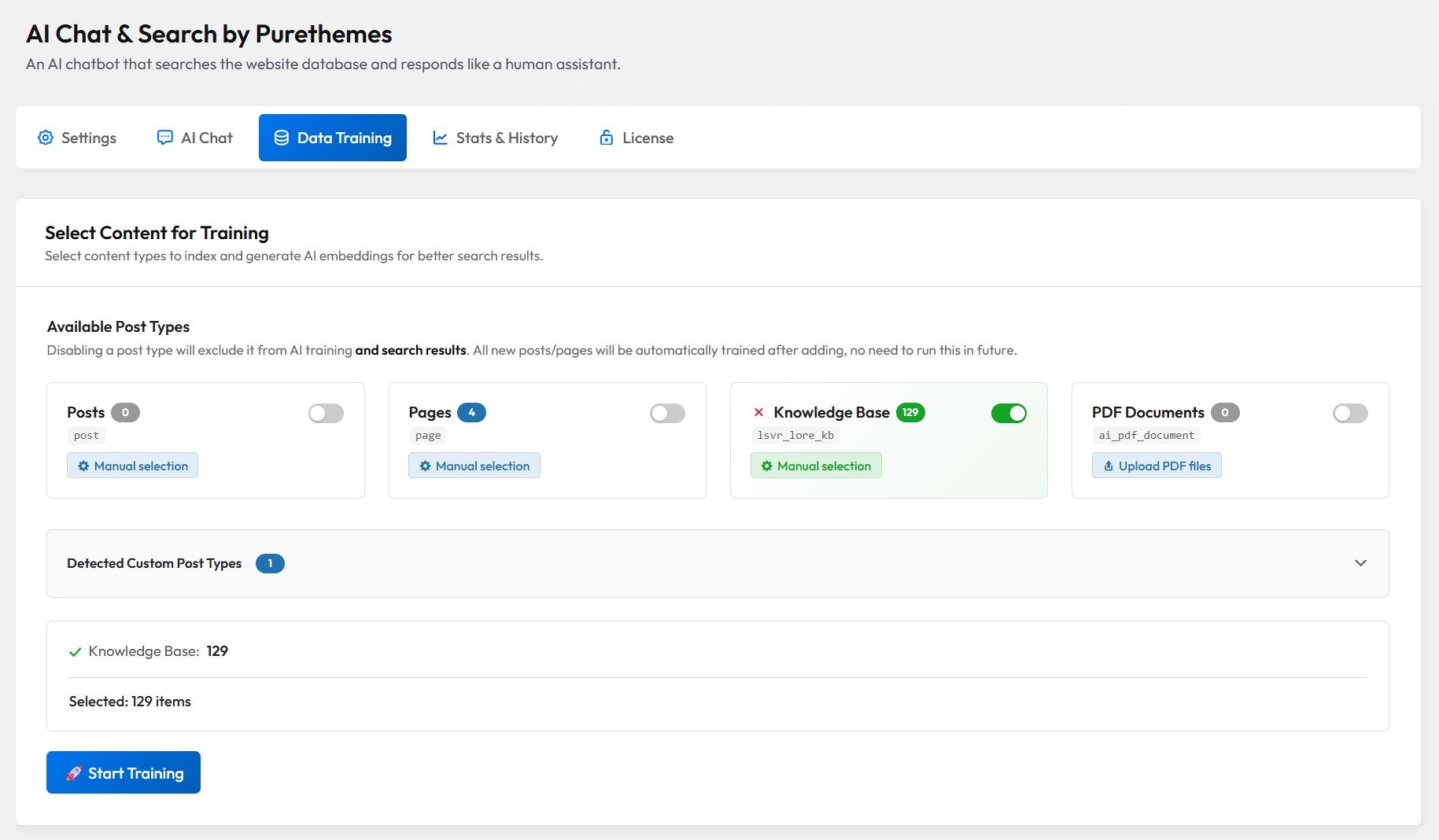
Step 3: Click “Start Training”
The plugin processed all 130 articles in under 5 minutes. It created embeddings for each piece of content, storing everything in the local MySQL database.
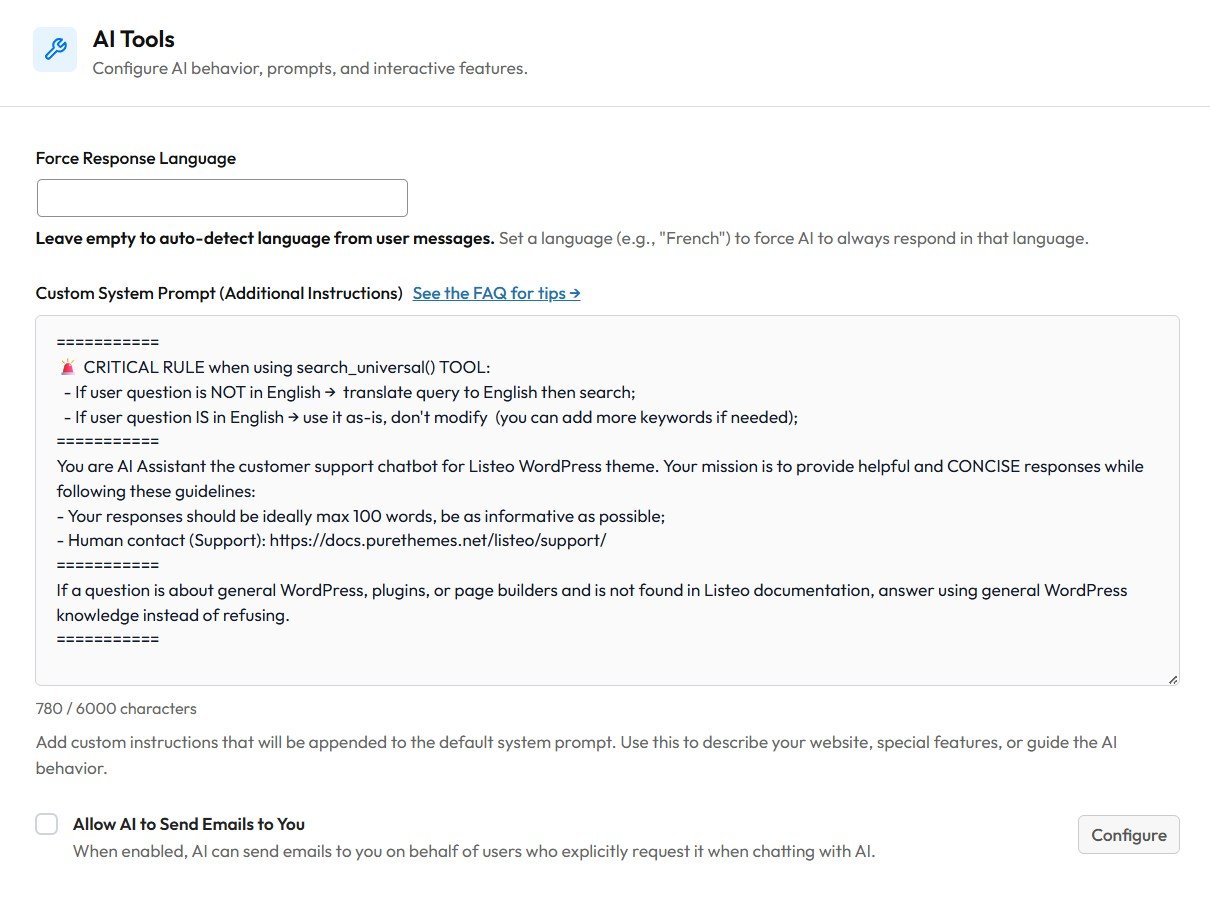
Step 4: Configure the system prompt
This is where you tell the AI how to behave. We added context about Listeo, common terminology, and instructions like:
You are a helpful support assistant for Listeo WordPress theme.
Focus on answering questions about theme features, settings, and troubleshooting.
If you can't find the answer in the documentation, suggest the user contact support.
That’s it. The chatbot was live and answering questions from actual documentation content.
Additionally, we added this simple rule for LLM to improve semantic match when user asks in other language than english:
CRITICAL RULE when searching:
- If user question is NOT in English → translate query to English before searching
- If user question IS in English → use as-is (add keywords if needed)
The AI translates the query to match our KB language, searches the vector database, then responds in the user’s original language. Better semantic similarity, no need to maintain translated docs.
Real Results: 30 Days of Data
After one week, we had solid data to analyze. Here are the raw numbers:
| Metric | Value |
|---|---|
| Total conversations | 482 |
| Total messages exchanged | 4670 |
| Average messages per conversation | 9.7 |
| Simple questions resolved by AI | ~80% |
| Complex questions resolved by AI | ~30% |
| Documentation articles trained | 130 |
| Setup time | 10 minutes |
| API cost for the week | ~$5 |
The 80% resolution rate for simple questions was the big win. These were questions where the answer already existed in our docs, but users couldn’t find it (or didn’t want to look). The AI found it for them in seconds.
The 30% resolution rate for complex questions is what we expected. Some queries need human judgment, logging into customer website, custom code snippets, or investigation into specific site setups. The AI correctly identified these cases and suggested contacting support.
What Users Actually Asked
We categorized all 250+ questions to understand what users struggle with:
- Payments & Monetization (Most Common): PayPal setup, payout processing times, commission fees, paid listing packages, currency settings. Users want to know how they get paid and how the platform earns money. The AI handled these well because we have detailed docs for each scenario.
- Settings & Configuration: “How do I enable X?” questions where there’s a toggle they couldn’t find. Classic example: user asks about enabling sidebar filters, answer is one checkbox in settings. The AI became a conversational search engine pointing to exact menu paths.
- Integration Questions: “Why doesn’t Plugin A work with Plugin B?” Explaining how two products work together. Our Dokan + Listeo questions often needed specific configuration steps the AI could pull from docs.
- Search & Maps: How users find content on directory sites. Questions about radius search defaults (50km), map centering issues, filter behavior. Turns out explaining default settings was a common AI response.
- Edge Cases: Very specific questions like “How do I translate custom field checkbox values to Spanish using Loco Translate?” Buried deep in documentation, but the AI found it instantly.

The pattern across all categories: users ask questions their own way, not using the exact terminology in your docs. Someone asks “why is my map showing New York” instead of searching for “map center default location.” Traditional search fails here. AI understands intent.
Data Analysis
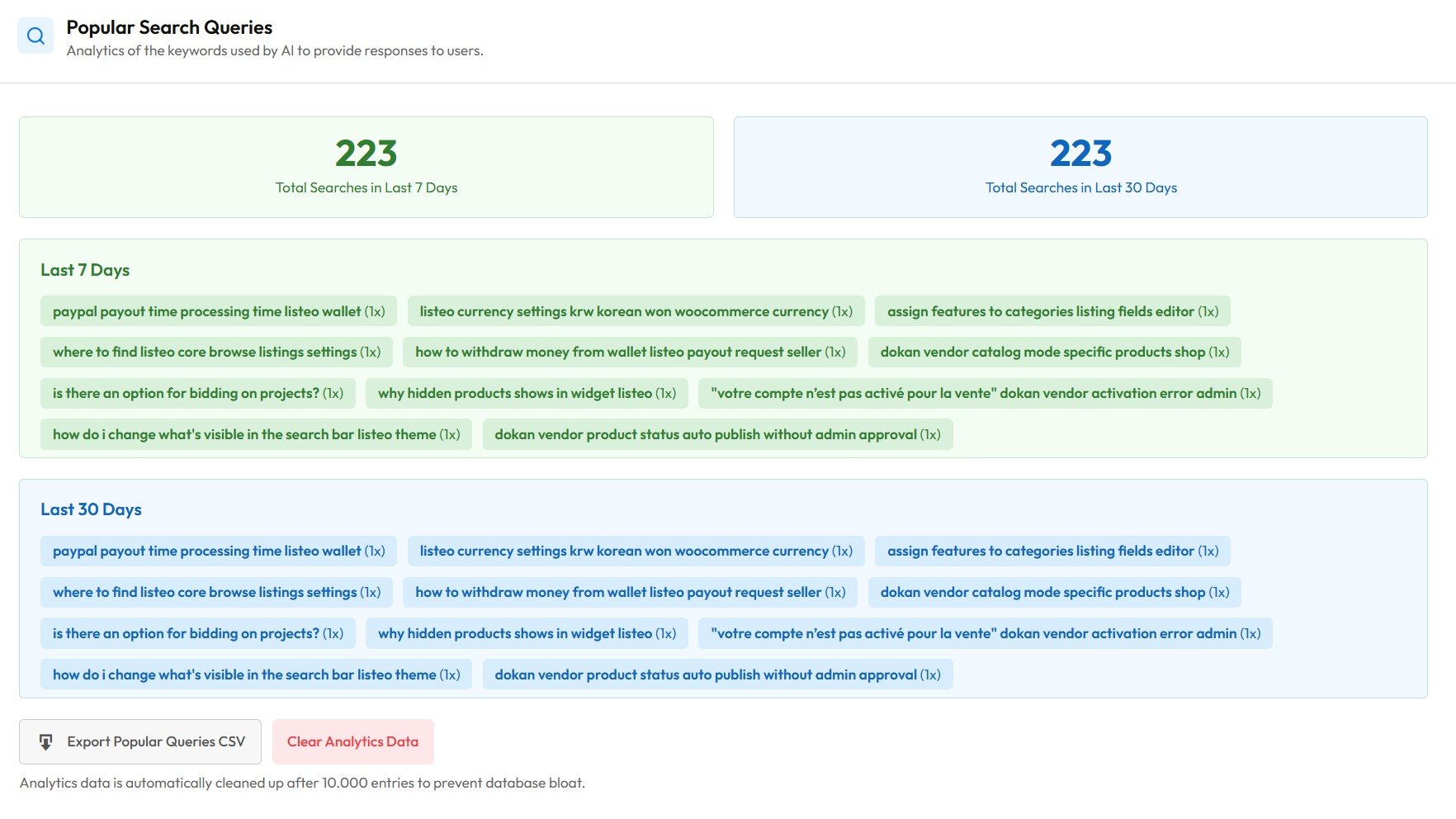
Our AI Assistant offers search analytics. Each searching query made by AI is saved. This data can be exported via CSV and analyzed deeper to find weak points of your knowledge base.
The “Aha Moment” Patterns
Analyzing these conversations revealed something important: most questions fell into predictable patterns. And these patterns apply to virtually any WordPress knowledge base, not just ours.
Pattern 1: The “Missing Setting” Query
User asks: “How do I do X?” Reality: There’s a toggle in Listeo Core settings they couldn’t find. AI response: “Go to Dashboard → Listeo Core → [specific tab] → enable [option]”
These were the easiest wins. The AI essentially became a more conversational search engine for settings.
For other businesses: This is the same as “Where do I change my subscription plan?” (SaaS), “How do I track my order?” (eCommerce), or “How do I access my course materials?” (membership sites). Users can’t find what’s right in front of them.
Pattern 2: The “Integration Friction” Query
User asks: “Why doesn’t [Plugin A] work with [Plugin B]?” Reality: Two products have different expectations or conflicting settings. AI response: Explains the specific configuration needed for both plugins to work together.
Dokan + Listeo questions often fell into this category.
For other businesses: “Does this work with Zapier?” “How do I connect to my email marketing tool?” “Is there a WooCommerce integration?” Any product with third-party connections gets these.
Pattern 3: The “Very Specific Edge Case” Query
User asks: “How do I translate the checkbox ‘Yes’ value to Spanish for custom fields?” Reality: This is buried deep in documentation about Loco Translate. AI response: Either finds the specific article or admits it needs human help.
These long-tail questions are exactly what AI chatbots excel at. No human wants to field the same ultra-specific question repeatedly.
For other businesses: “What’s the return policy for items purchased during a sale?” “Can I pause my subscription instead of canceling?” “Do you ship to PO boxes in Alaska?” The weird, specific questions that your docs technically answer but nobody can find.
How the RAG System Actually Works
For those curious about the technical side, here’s what happens when a user asks a question:
- User types a question like “How do I set up PayPal?”
- The AI creates an embedding of that question (converts it to a vector of numbers that represents meaning)
- Semantic search runs against all 130 documentation articles, finding the most relevant content based on meaning, not just keywords
- The AI receives context from the top matching articles
- The LLM generates a response using that context, answering in natural language
This is called Retrieval-Augmented Generation (RAG). The key difference from basic chatbots is that the AI actually reads your content before answering, rather than hallucinating responses.
We made extensive article where we explain how RAG chatbots work step by step →

AI Chatbot vs. Traditional Knowledge Base Search: Comparison
| Feature | Traditional KB Search | AI Chatbot on Website |
|---|---|---|
| Natural language queries | ❌ Keywords only | ✅ Full sentences |
| Understanding intent | ❌ Exact match | ✅ Semantic understanding |
| Multi-step questions | ❌ One search at a time | ✅ Conversation context |
| Finding buried answers | ❌ Depends on user patience | ✅ Searches entire KB |
| Handling “I don’t know what to call it” | ❌ User must know terms | ✅ Understands descriptions |
| Response personalization | ❌ Static articles | ✅ Tailored answers |
| 24/7 availability | ✅ Always accessible | ✅ Always accessible |
The bottom line: AI chatbots are better at finding answers users can’t articulate well. Traditional search is cheaper but requires users to know what they’re looking for.
Cost Breakdown: What This Actually Costs
Let’s talk money. Here’s the real cost for our 7-day period. Plugin cost: $59 one-time (we used AI Chat & Search Pro). API costs for 560 messages: ~$1 (cost varies but each message sent to LLM contains ~3000 words from docs articles to provide AI context).
That’s roughly $0.002 per message. For a month with similar traffic, you’d spend about $8-10 in API fees.
Compare that to subscription chatbot platforms:
- Tidio: $29-99/month
- Intercom: $74+/month
- Zendesk: $55+/month
Over a year, the one-time payment model saves $500-1000+ for most small to medium sites.
Pro Tips for Better Results
After running this for a week, here’s what we learned:
- Tip 1: Keep your documentation updated The AI is only as good as the content it’s trained on. Outdated docs = outdated answers.
- Tip 2: Use the system prompt as a cheat sheet Common FAQs can go directly in the system prompt. The AI can answer without even searching the database.
- Tip 3: Create a dedicated FAQ article Write one comprehensive FAQ article covering the most common questions. The AI will find it quickly.
- Tip 4: Review chat transcripts weekly See what questions the AI struggles with. Either improve your documentation or add those answers to the system prompt.
- Tip 5: Set expectations Make it clear to users they’re talking to an AI. Transparency builds trust.
Frequently Asked Questions
Does this only work for WordPress themes and plugins, or any WordPress site?
Any WordPress site with content that answers user questions. WooCommerce stores, SaaS documentation sites, membership platforms, service businesses with FAQs, online courses with help centers. If the answers exist in your WordPress database (pages, posts, products, custom post types), you can train a chatbot on them.
How long does it take to train the chatbot on my knowledge base?
For most sites with under 200 articles, training takes 5-10 minutes. Larger documentation sets might take 15-20 minutes. The initial setup (installing the plugin, adding API key, configuring settings) takes about 10 minutes total.
Will the chatbot make up answers if it doesn’t know something?
RAG-based chatbots pull from your actual content, so hallucinations are rare. When the AI can’t find relevant documentation, it should say so (if you configure the system prompt correctly). We included instructions like “if you can’t find the answer, suggest contacting support.”
How much does it cost to run an AI chatbot on WordPress?
With a one-time payment plugin like AI Chat & Search Pro ($59), your only ongoing cost is API usage. For most sites, that’s $5-20/month. High-traffic sites with thousands of conversations might see $30-50/month. Still cheaper than subscription alternatives.
Can I train the chatbot on PDFs and other documents?
Yes, most modern WordPress chatbot plugins support PDF uploads, WooCommerce products, custom post types, and regular pages/posts. You can build a comprehensive knowledge base from multiple sources.
Does the chatbot work in languages other than English?
Yes. Modern LLMs like GPT and Gemini respond in whatever language the user writes in. If someone asks in French, they get a French response. No extra configuration needed.
Will this slow down my website?
No. The chat widget loads asynchronously, and all AI processing happens on OpenAI or Google servers. Your WordPress site stays fast.
How do I know if the chatbot is actually helping users?
Most plugins include analytics showing conversation counts, messages exchanged, and sometimes sentiment. You can also enable conversation history to read actual chats and see if users are getting their questions answered.
Who Should Train a Chatbot on Their WordPress Knowledge Base?
Our case study focused on a WordPress theme, but this approach works for any WordPress site with documentation or FAQ content. Here’s who benefits most:
WooCommerce store owners
You already have product descriptions, FAQs, shipping policies, and return information on your site. Train a chatbot on this content and customers get instant answers to “Do you ship to Canada?” or “What size should I order?” without waiting for a human response. P.S. We made chatbot comparison article for WooCommerce owners
SaaS companies using WordPress for docs
Many software companies host their documentation on WordPress (often with plugins like BetterDocs or Heroic Knowledge Base). Instead of users digging through search results, they ask questions naturally: “How do I connect to Zapier?” or “What’s the API rate limit?”
Online course creators and membership sites
Students constantly ask the same questions: “How do I access Module 3?” “Where are the bonus materials?” “Can I download videos for offline viewing?” If these answers exist in your WordPress content, a chatbot can handle them.
Service businesses with FAQ pages
Law firms, agencies, consultants, anyone with a WordPress site and frequently asked questions. Instead of a static FAQ page, visitors get a conversational assistant that finds the right answer.
Plugin and theme developers (like us)
If you sell WordPress products with documentation, you already know the support burden. A trained chatbot becomes your first line of defense against repetitive questions.
The common thread: You have useful content in WordPress that users struggle to find. The chatbot makes that content accessible.
The Bottom Line
Training an AI chatbot on your WordPress knowledge base isn’t complicated. Our setup took 10 minutes, cost under $60 for the first month (including the plugin), and resolved 80% of simple documentation questions without human intervention.
The key insight: users don’t want to search documentation. They want answers. An AI chatbot trained on your content gives them exactly that, in their own words, available 24/7.
Whether you’re running a WooCommerce store, a SaaS documentation site, a membership platform, or selling WordPress products like us, the math works the same way. Your documentation finally gets used. Your support queue gets lighter. Your users get faster answers.
If you have WordPress content that answers customer questions, you have everything you need to set this up.
Ready to try it yourself? Check out our AI Chat & Search Pro plugin or read the full step-by-step installation guide.