









How to Create a Directory Listing Website with WordPress and Listeo (2026 Review & Guide)
Want to build a directory website that actually generates passive income? You’re in the right place. In this complete guide, I’ll walk you through creating a professional WordPress directory listing website using the Listeo theme.
Whether you’re planning a local business directory, restaurant listing site or vacation rental marketplace, Listeo gives you all the tools without touching a single line of code.
Let’s dive in.
P.S. If you prefer video, we recorded a 30-minute guide on YouTube as well →
Lets build your business directory website with Listeo
What is Listeo and Why Should You Care?
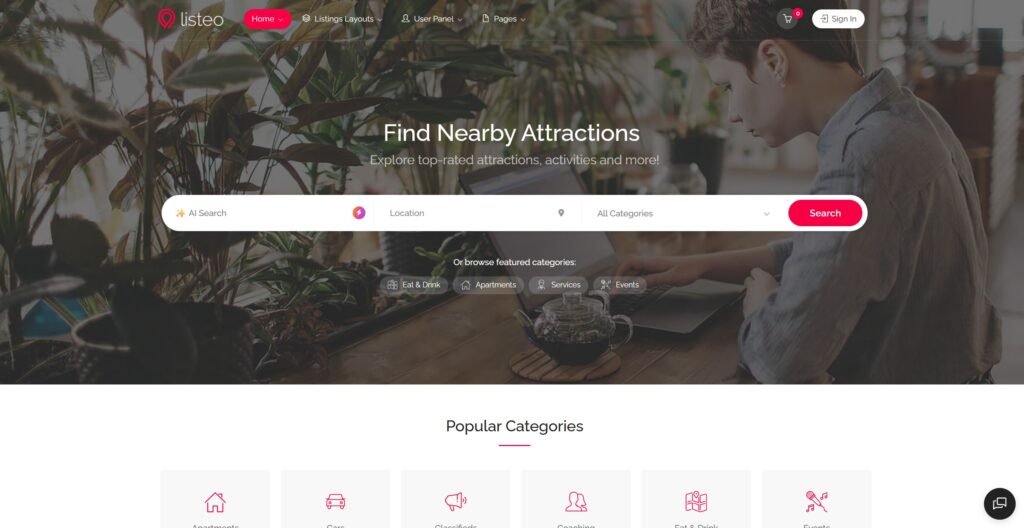
Listeo is a premium WordPress directory theme used by over 10,000+ customers on ThemeForest with a solid 5.0 rating. That’s not a fluke.
What makes it stand out? It’s a complete directory website solution handling everything from listing submissions to payment processing to booking management. You get a working directory business out of the box.
1. Installing Listeo Theme on WordPress
I’m assuming you have WordPress installed on your hosting. Most hosts offer one-click WordPress installation these days. Here’s how to get Listeo running:
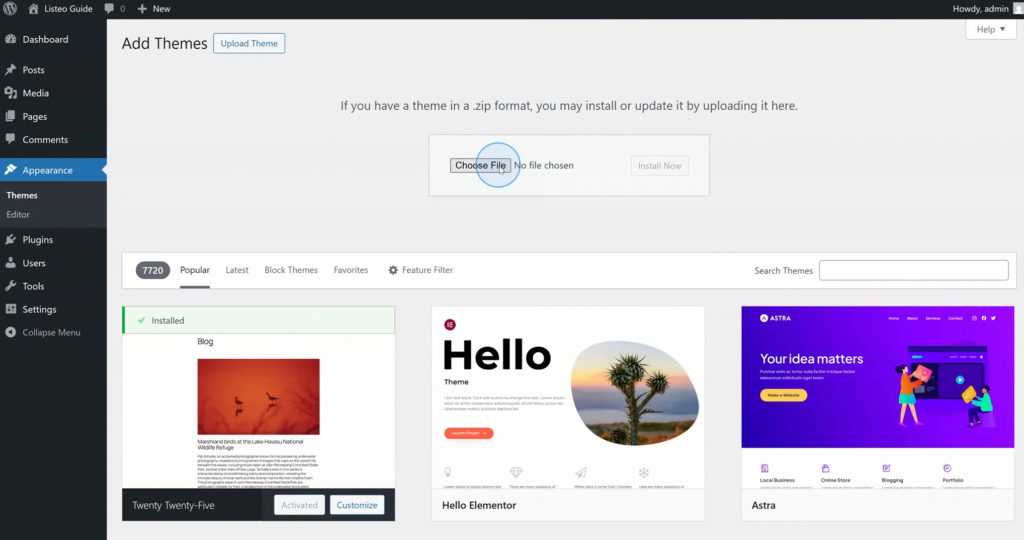
Once activated, you’ll see the Listeo Setup Wizard that walks you through configuration step by step.
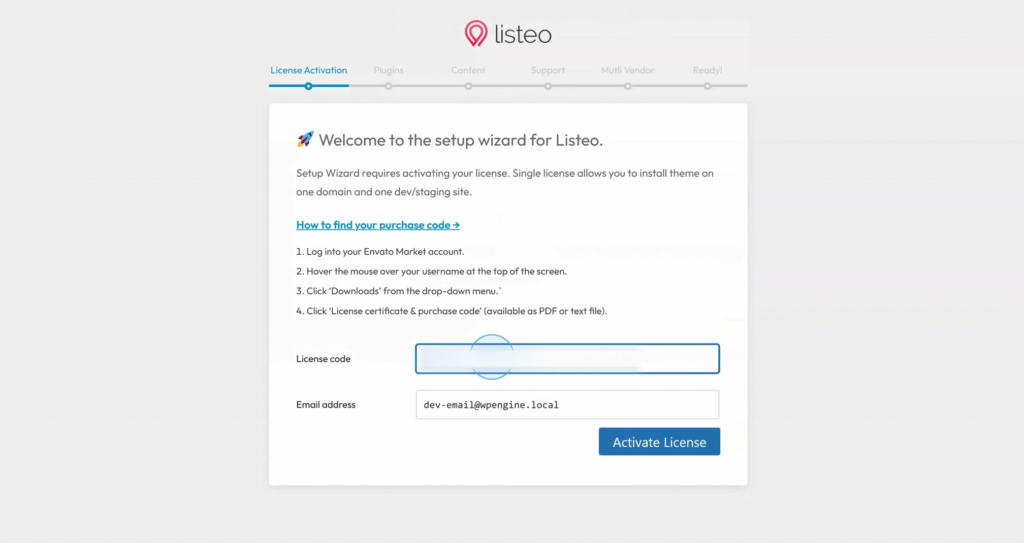
Setup Wizard
First, paste your license key to activate updates and support access. Then install all necessary plugins with one click. Listeo relies on several plugins to function properly, and the wizard handles everything automatically.
Importing Demo Content
Here’s where the magic happens. You can import demo content to get a fully functional directory website in minutes. This includes sample listings, pages, menus, and widgets.
Fair warning: importing media files might take a while depending on your server. Grab a coffee. 🙂
2. AI Documentation Assistant
Before we go further, let me highlight something cool. Listeo comes with an AI-powered smart support assistant trained specifically on the theme’s documentation. This thing knows pretty much everything about Listeo.
Got a question about booking settings? Ask the AI. Need troubleshooting help? The AI handles it. It even works in multiple languages.

The documentation itself covers over 100 detailed articles on every possible topic. Between docs and the AI assistant, you’ll rarely need to contact support.
3. Pre-Built Homepage Designs
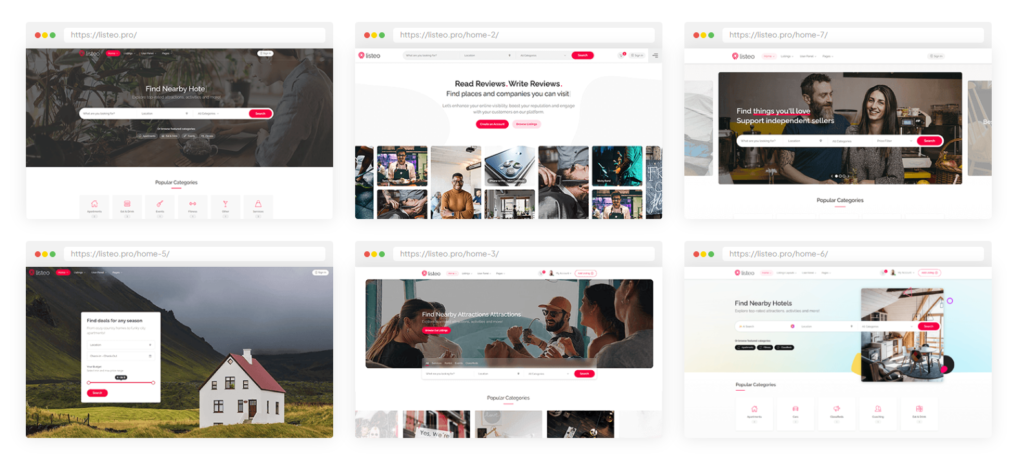
One of the coolest things about Listeo is that you get multiple pre-built homepage designs right out of the box. Each one works for different types of directories:
- Hero search banners at the top
- Category boxes for quick navigation
- Featured listings sections
- Tabbed content areas
And everything loads super fast. For tips on making your directory even faster, check out our WordPress speed optimization guide.
Customizing with Elementor
Every single element you see is completely customizable with drag and drop. No coding whatsoever.
Click Edit with Elementor, and once loaded, drag, drop, customize colors, text, settings. Take any demo and make it 100% yours in minutes, not hours.

4. Listing Layouts and Search Results
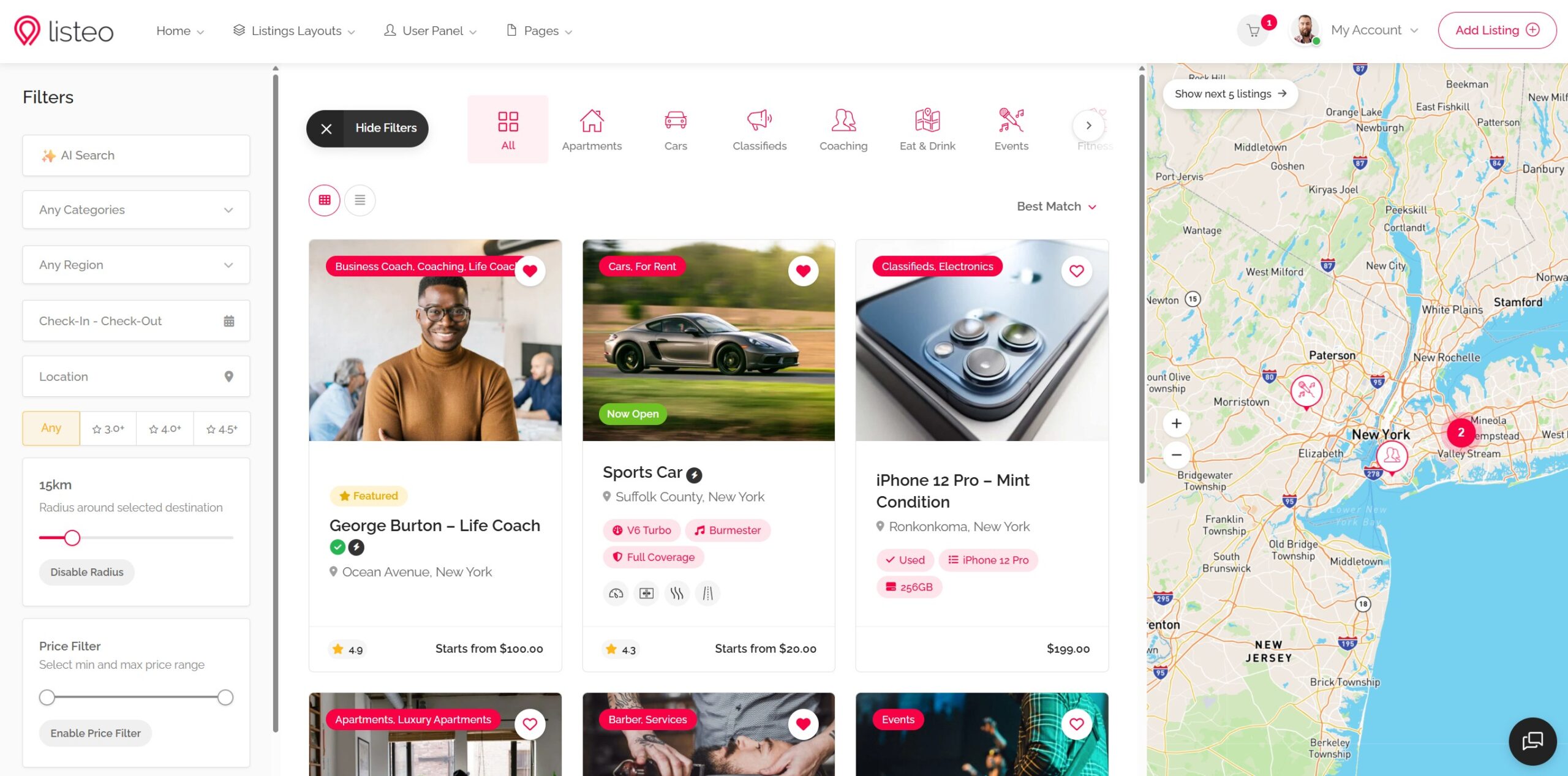
This is what users see when browsing or searching your directory. Listeo offers several layout options:
- Grid view for visual browsing
- List view for detailed information
- Map view for location-based searching
You’ve got filters on the left, listings in the middle, and users can switch between views.
Customizer Settings for Listings
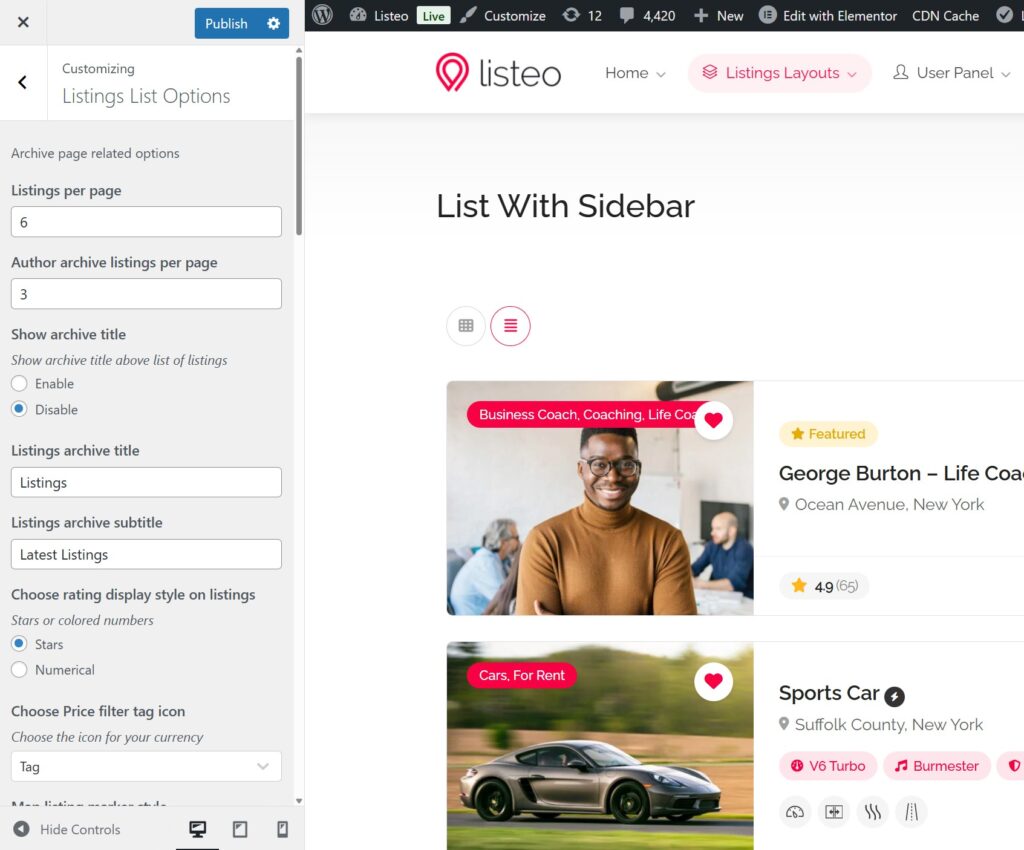
Open the WordPress Customizer and this is where the magic happens. You can control your search results layout from classic layouts with sidebar to modern designs with sliding filters.
Key settings you can adjust:
- Listings per page (how many results show)
- Listing card appearance and information displayed
- Default sorting options
- Map behavior on mobile (collapsed or expanded)
4. Header and Branding Options
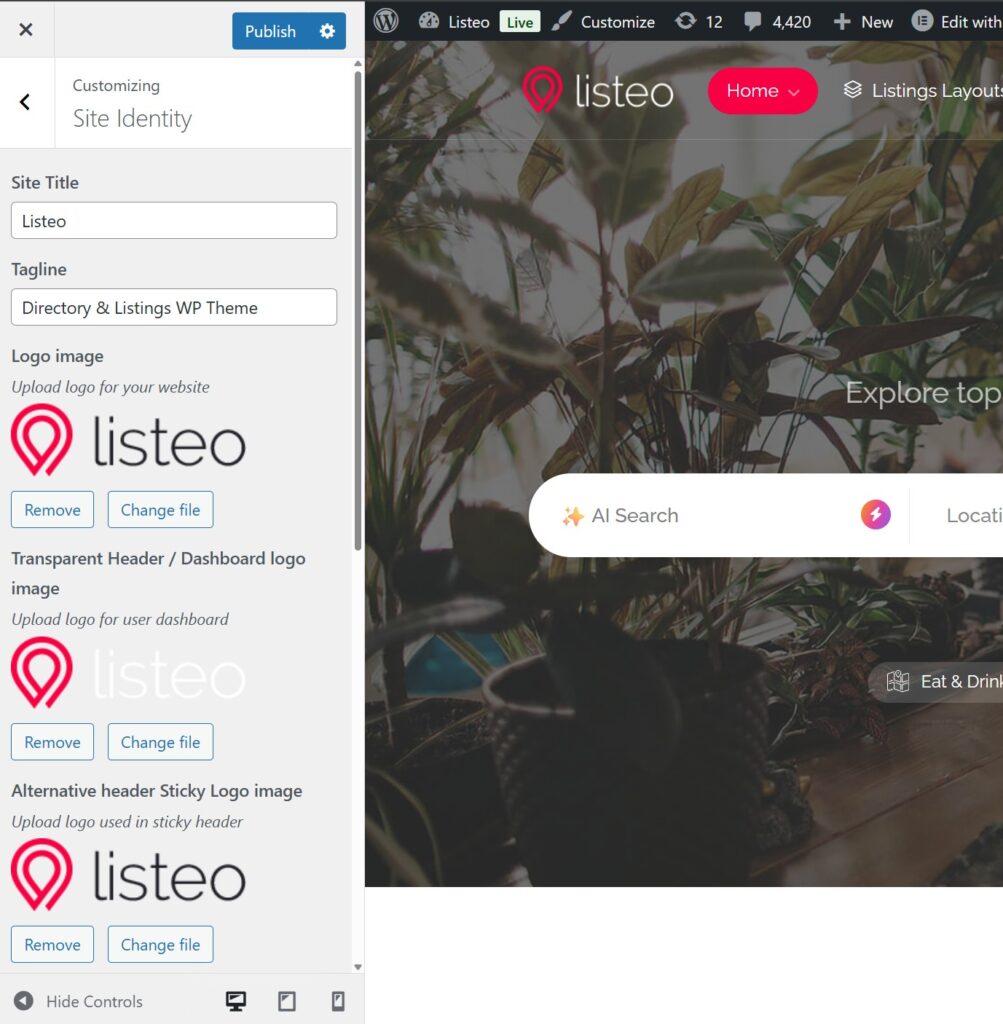
Listeo offers multiple header styles to match your brand: standard, sticky that follows users as they scroll, transparent for hero sections, or with built-in search form. Pick what works best.
Upload your logo in Site Identity settings and it appears instantly. Switch between dark/light modes, modify header and footer colors, and set your primary color.
Everything updates automatically: buttons, links, category highlights, all matching your brand instantly.
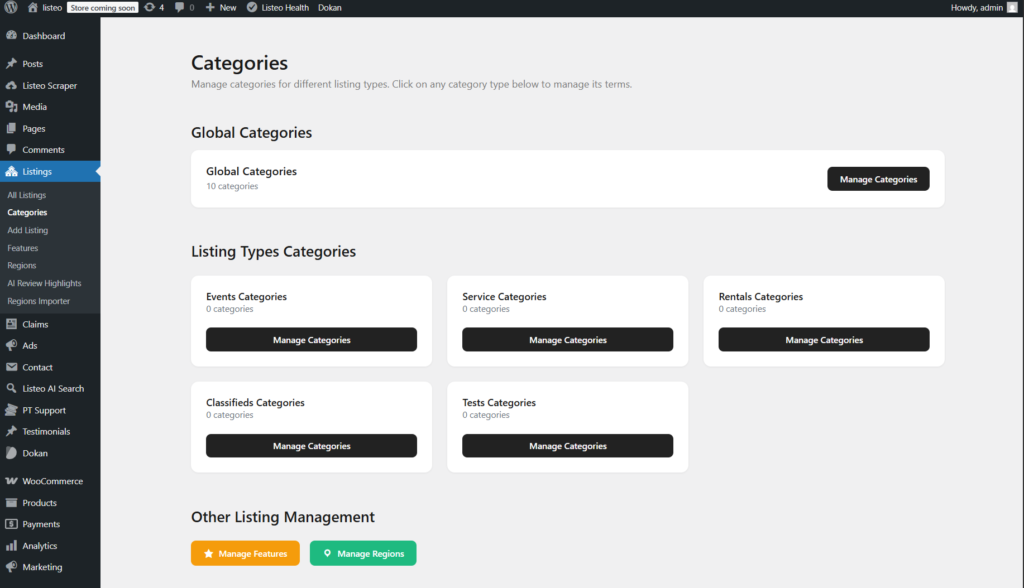
5. Setting Up Your Taxonomy Structure
Before adding listings, set up your taxonomy structure so users can find what they’re looking for.
Categories define what type of business or listing it is. If you imported the demo, you’ll see categories like restaurants, hotels, gyms already there. You can keep, delete, or add your own. Adding a category is simple: give it a name, assign features, and upload a custom icon.
Features are the amenities or characteristics of listings. Things like Wi-Fi available, pet friendly, parking available. Whatever makes sense for your directory niche. These display on listing cards for quick scanning.
Regions define your geographic structure hierarchically: Country > State or Province > City > Neighborhoods if you want to get granular.

6. The Translation Importer (Time Saver)
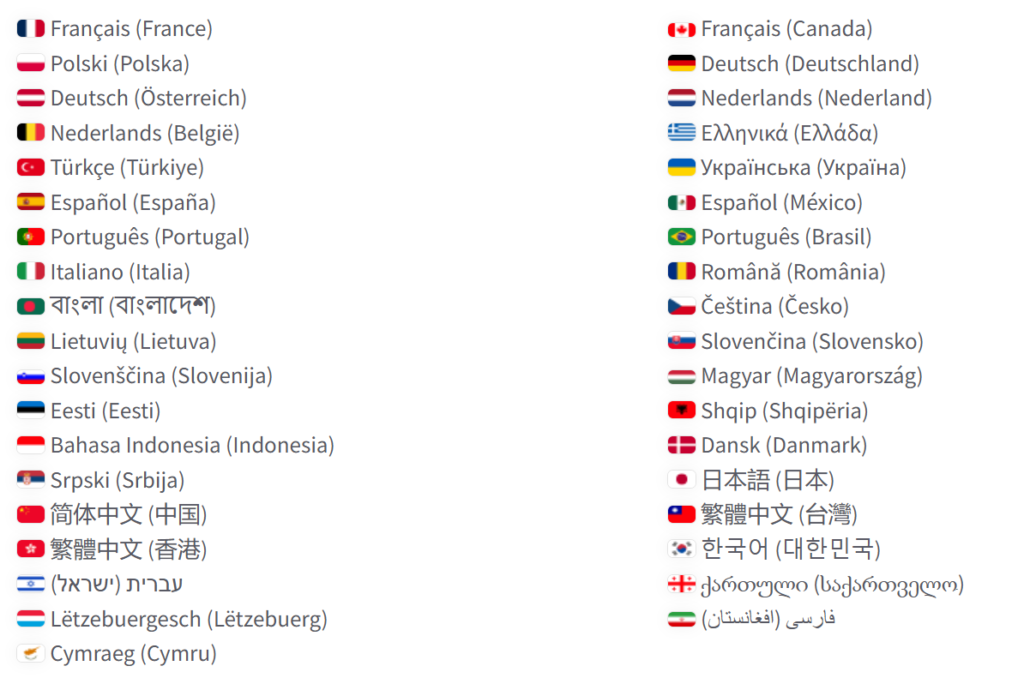
The Translation Importer lets you install a full language in just a few clicks. Instead of editing strings one by one, you go to Settings → Translation Importer, pick your language, and click Download and Install. The system adds all translated strings automatically.
This tool cuts out manual translation work. You get a working language instantly. It works with the theme and related plugins, so your site texts are consistent and complete.
If you need to adjust text after import, you can edit with a translator plugin like Loco Translate. If you’re building a directory for international audiences, our guide on best WordPress translation plugins can help you go multilingual.
The Region Importer

Here’s something that saves hours. Instead of manually typing hundreds of cities, the region importer lets you add locations in bulk.
This literally saves hours of manual data entry, especially for countries with dozens of states and hundreds of cities.
7. Adding Listings to Your Directory
Listings can be added four different ways:
- Manually by you in the WordPress dashboard
- Front-end submission by visitors or business owners
- Bulk import using CSV or XML files
- Listeo-exclusive Data importer plugin (the fastest method)
For a deep dive on populating your directory quickly, see our guide on filling your directory with real businesses using bulk import.
The Listeo Data Importer Plugin (Game Changer)
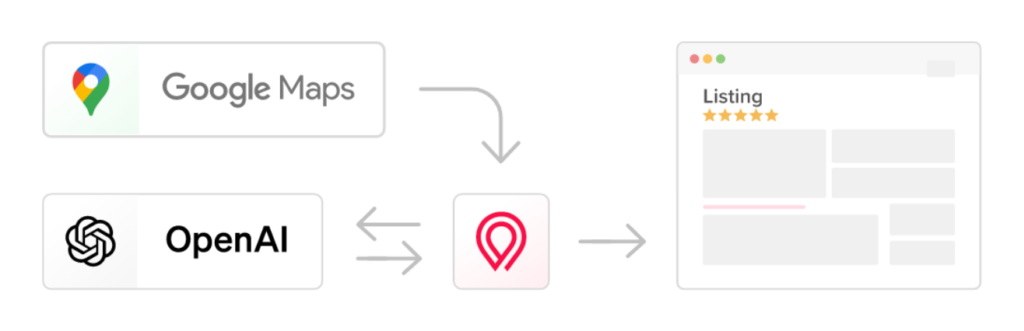
This is honestly one of the most powerful features. The data importer plugin populates your directory in minutes instead of hours. You will find plugin documentation here
Setting Up the Importer
Install the plugin (instructions in Listeo documentation), then add your API keys:
- Google Places API key for pulling listing data
- OpenAI API key (optional) for generating SEO-optimized descriptions
Importing Listings
Search for “Italian restaurants” in your area, select location using text or map point, choose the category and region, click Run Import.
The importer pulls:
- Business names and addresses
- Phone numbers and photos
- Opening hours and Google ratings
With OpenAI enabled, it writes unique SEO-friendly descriptions for each listing automatically.
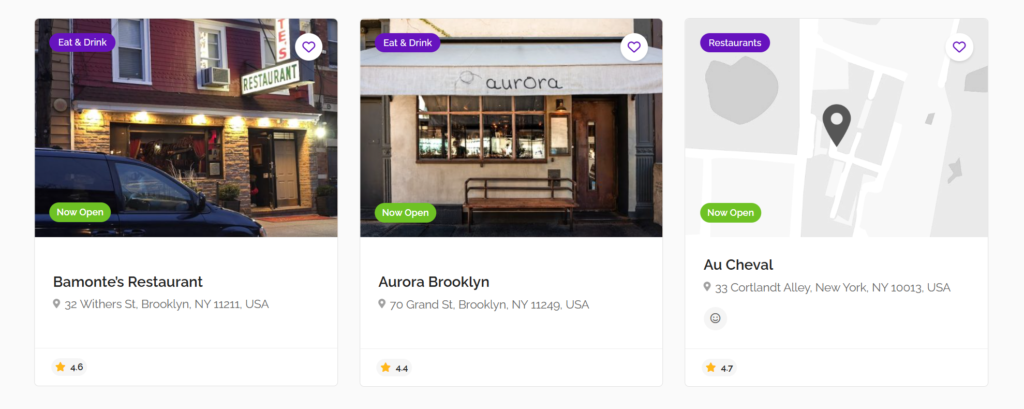
Adding 10 listings manually takes around 30 minutes. With the importer? Done in 2 minutes.

Google Reviews Integration
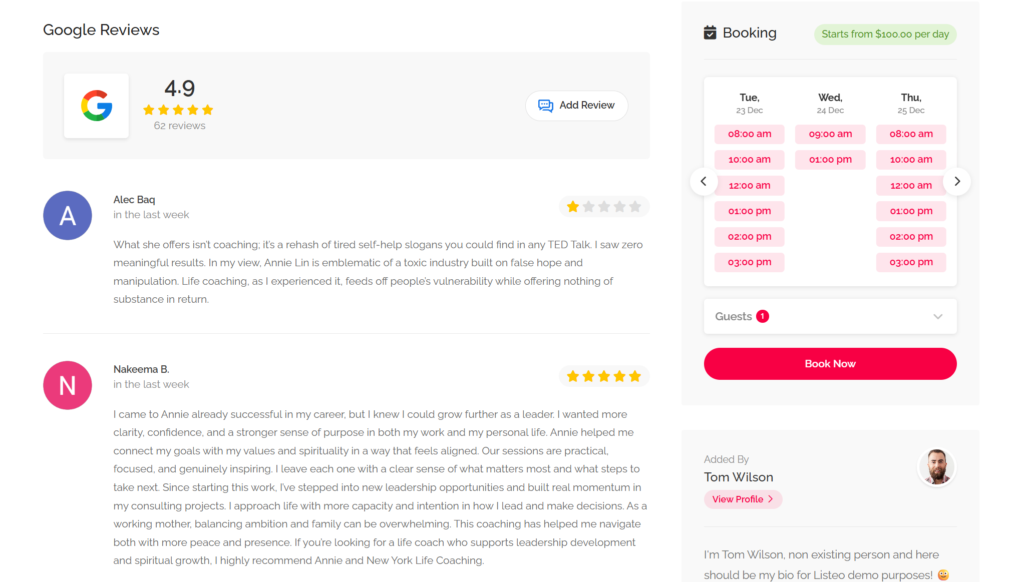
Display Google reviews directly on listing pages:
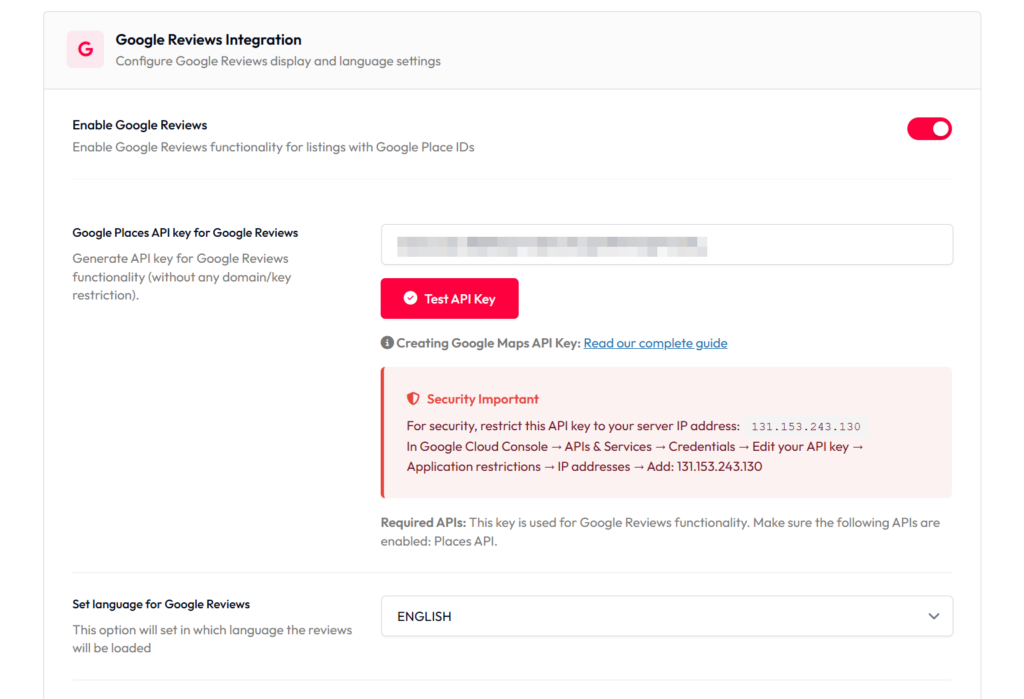
- Go to Listeo Core > Single Listing Options
- Find Google Reviews Integration section
- Enable the toggle and add your API key
- Click the test button to verify
Enable API rate limiting to prevent surprise costs. Set cache duration for how many days reviews are stored before refreshing. Monitor usage statistics right in settings.
8. Monetizing Your Directory Website
Now let’s talk about the money-making part. Listeo offers many monetization methods. We created comprehensive article about monetizing directory websites. Here’s brief summary:
Paid Listing Packages
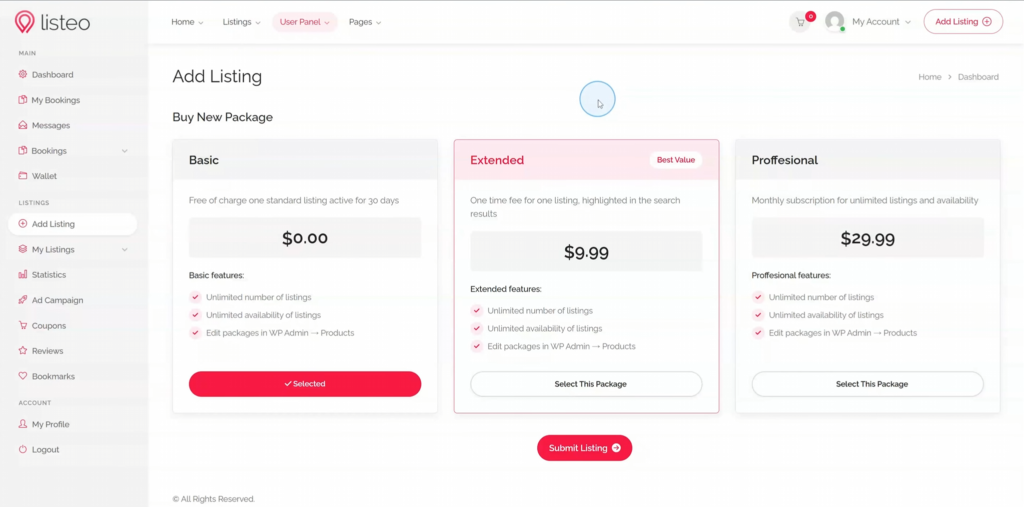
When users submit a listing, they see a pricing packages section where they choose which package to purchase. These are WooCommerce products with configurable:
- Listing limit (how many they can post)
- Duration (how many days listings stay active)
- Featured badge option
- Booking Module – makes setting booking options available in Listing and displays the Booking Widget in Single Listing Sidebar
- Reviews Module – adds option to review the listing
- Gallery Module – adds option to upload images to
- Gallery Images Limit – limits number of photos that can be uploaded to listing
- Social Links Module – adds option to set external social sites links
- Opening Hours Module – adds option to set Opening Hours and display them in the Opening Hours widget
- Video Module – adds option to add and display video in the listing
- Coupons Module – adds option to set Coupon for the listing and display it in the sidebar widget
- FAQ Section
- Dokan Store Access and Duration – Allow user to create and manage a Dokan vendor store with this package.
Price them however you want: $29/month, $99/year, whatever fits your model.
Paid Claim Listings
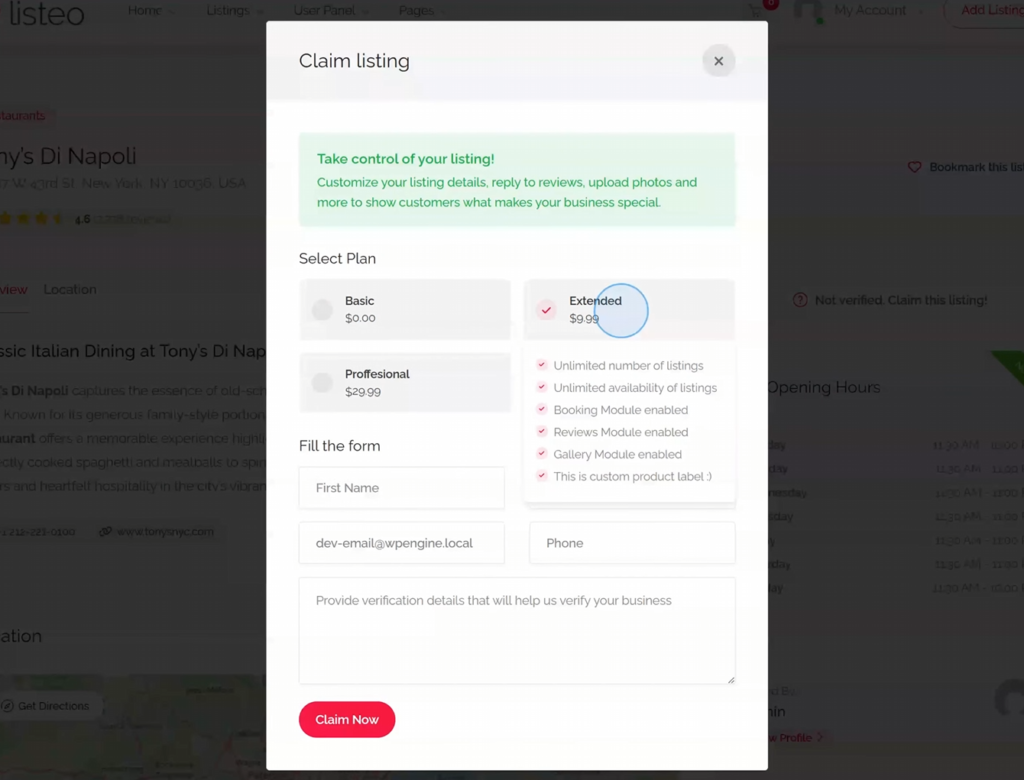
Brilliant for directories where you’ve already added listings via scraping. Business owners can pay to claim their listing and take control.
How it works: You add listings, they show as “Not Verified,” business owners click to claim, see your pricing packages, and pay. You provide value, they get a professional listing with booking and reviews.
Booking Commissions
For bookable listings (vacation rentals, appointments, services), take a commission on every booking. Set your percentage in settings: 10%, 15%, 20%.
Example: Someone books a $75 stay. You get $7.50 automatically just for facilitating through your platform.
Paid Advertising Spots
Listeo has a built-in ad campaign manager letting listing owners pay for premium placement. They configure their campaign, see click/view estimations, submit and pay, then their listing appears in premium positions.
9. Visual Form and Field Editor
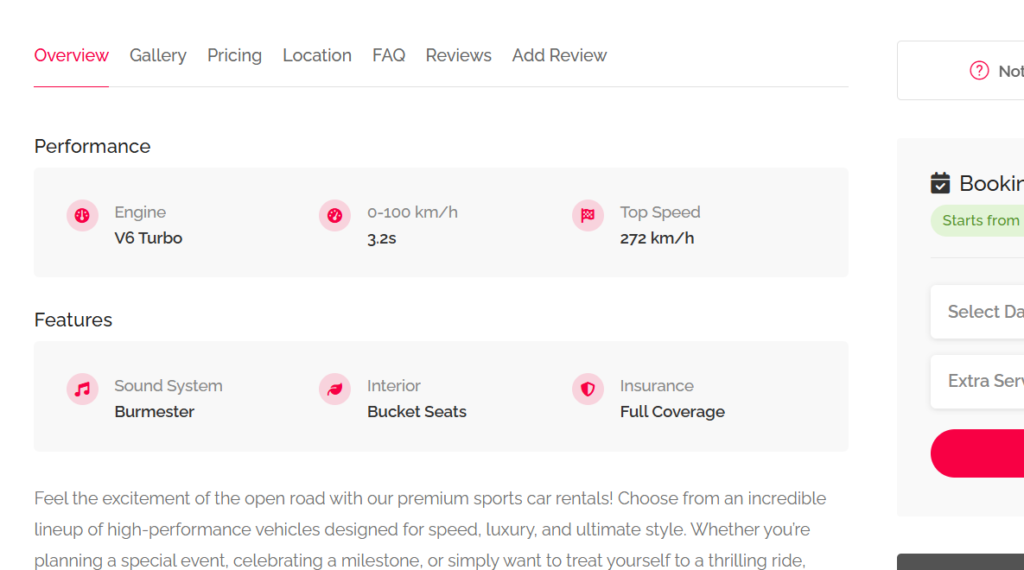
One of Listeo’s most powerful features is the visual form editor. Customize exactly what fields appear on forms.
Want check-in/checkout dates in your search bar? Go to Listeo Editor → Search Forms, drag the field in, save. Go back to homepage and it’s there instantly.

Creating Custom Fields
You’re not limited to existing fields. Create custom fields and filters for specific directory needs.
Example: You want restaurant listings to have a “Cuisine Type” dropdown, but not hotels or gyms. Add it in the custom fields editor, set field type (dropdown, text, checkbox), add options (Italian, Mexican, Vegan), and choose whether to show on cards or add to search filters.
Multi-Step Forms
Enable multi-step forms to split long submission forms into logical sections instead of one overwhelming page. Users progress through steps rather than scrolling endlessly.

10. Custom Listing Types
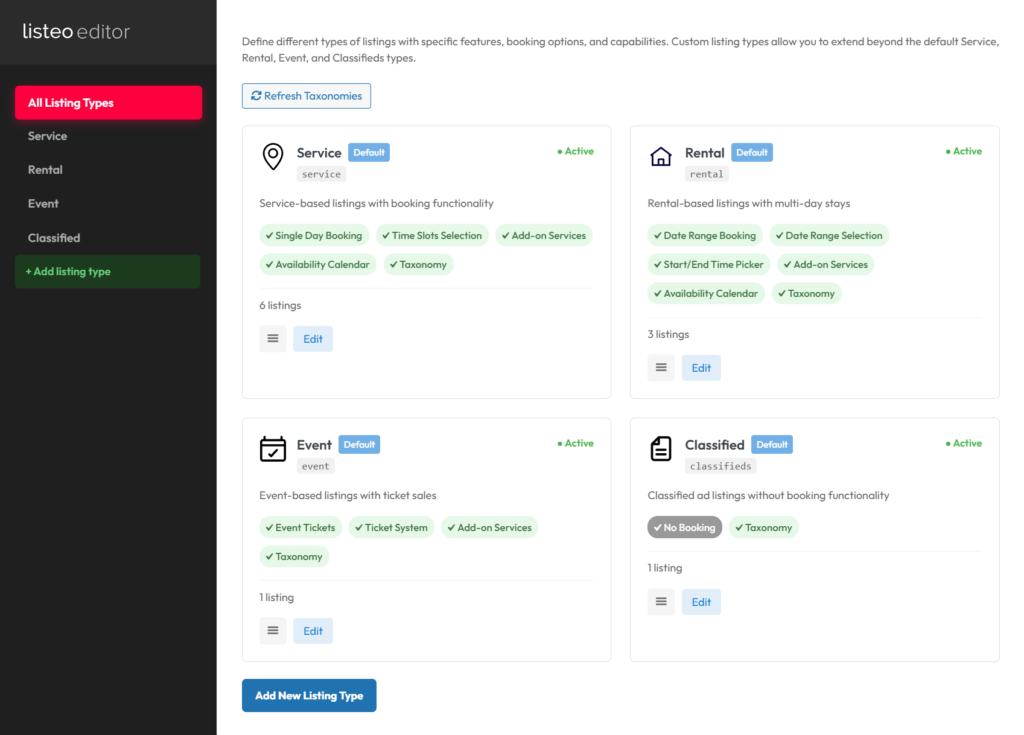
Here’s the grand finale of customization. Create unlimited custom listing types with unique form configurations, different field sets, custom booking settings, specific taxonomies, and tailored workflows. Perfect for directories handling multiple business categories with different requirements.
11. Single Listing Page Customization
Customize what visitors see when opening a listing: gallery styles (side, top, slider), similar listings with distance indicators calculated automatically based on geolocation data, and more.
With Elementor Pro, build completely custom single listing templates with drag and drop.
12. AI Review Highlights Plugin
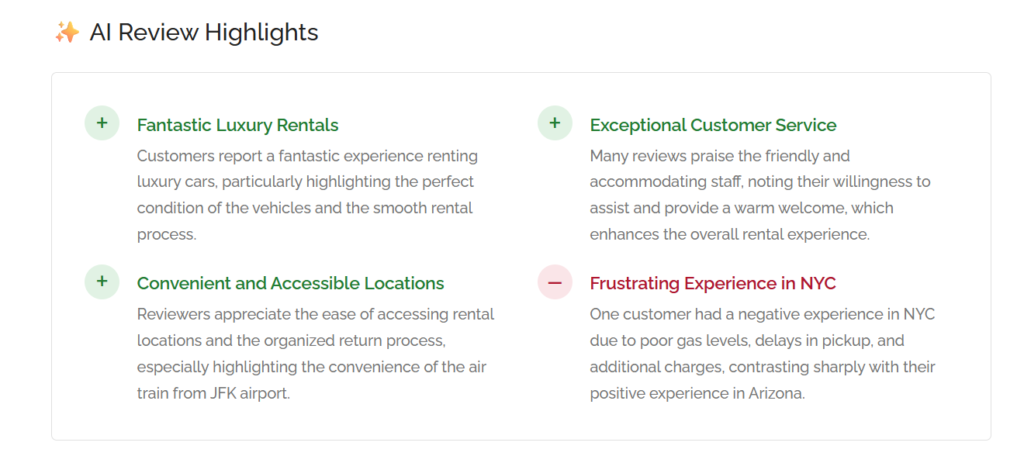
This free plugin uses AI to analyze all listing reviews and generate smart, concise highlights.
Install it, add your OpenAI key, tweak settings, select listings, click Generate Summaries. The plugin reads all reviews (WordPress and Google), sends them to OpenAI, generates concise highlights, and saves to database.
Visitors get a quick snapshot of what people are saying without reading every review.
13. AI Chat and Semantic Search
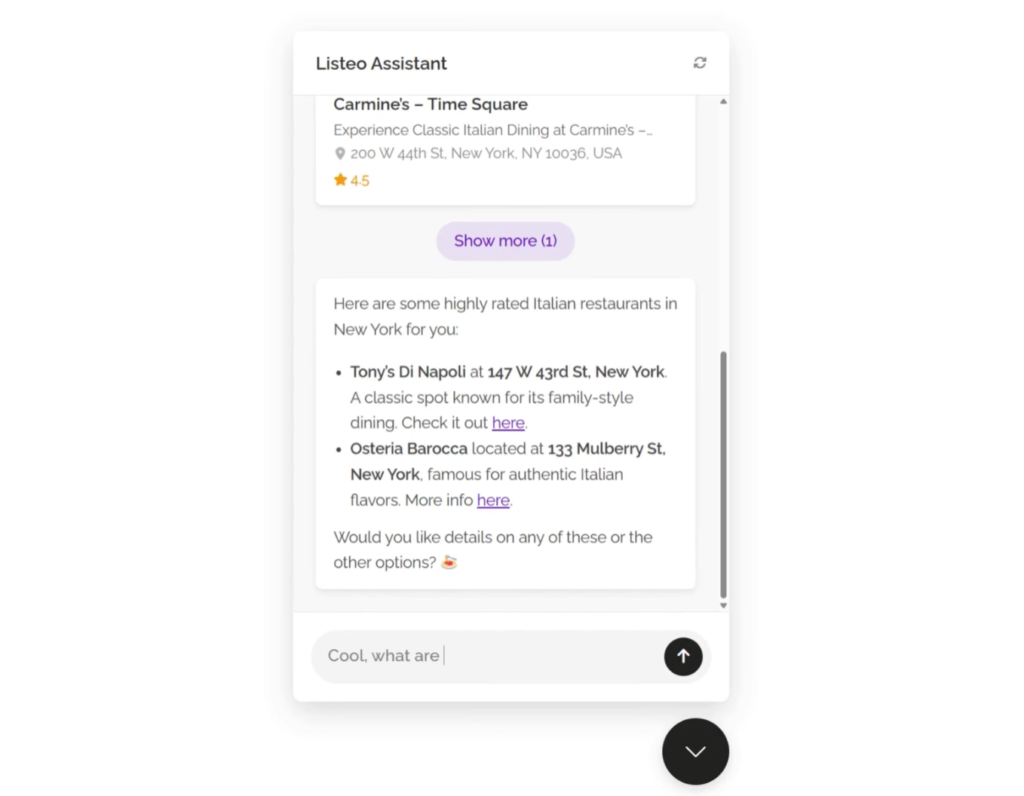
Listeo includes AI-powered chat and search that transforms how users find listings. Instead of basic keyword matching, it understands user intent. For more on adding AI to WordPress, check our complete ChatGPT and Gemini integration guide.
Training the AI
Add your OpenAI key, go to Data Training tab, train the AI on your listings. It reads all details and learns what each listing is about. Takes a while for large directories.
The Floating Chat Widget
Enable the floating chat widget and users can ask questions like “What Italian restaurants do you have in New York?” The AI analyzes the message and searches your database intelligently.
AI Search Without Chatbot
Add an AI search field directly to your search forms instead. Test with queries like “Italian restaurant where I can eat tiramisu” and watch semantic search find the right matches. That’s the power of semantic search.

14. Community and Support
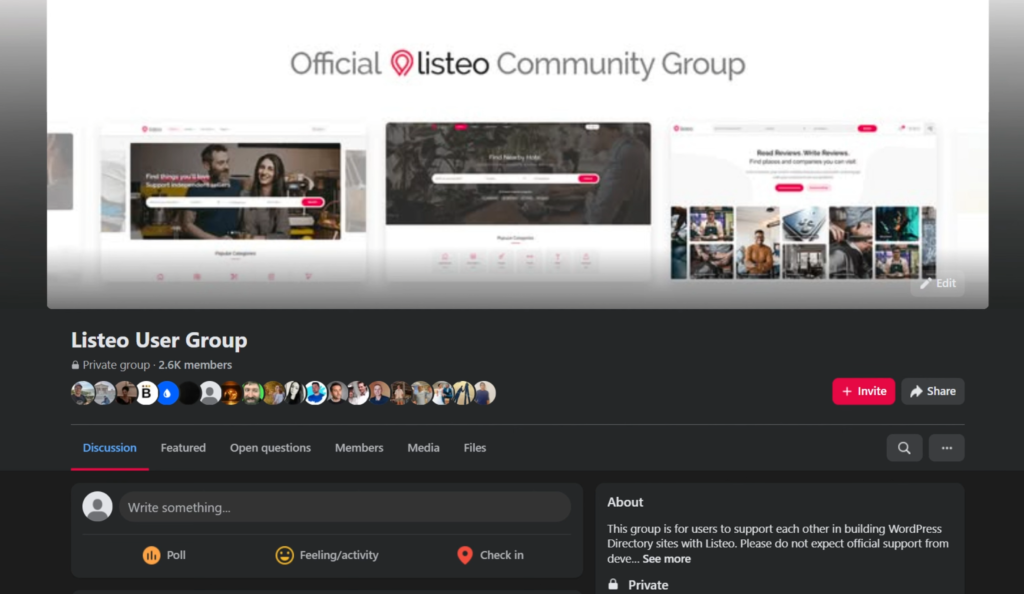
Listeo has an active Facebook community with 200+ new posts monthly. Connect with other directory owners, share tips, get inspired.
For technical help: documentation with 100+ articles, the AI assistant, and official support from the team.
Frequently Asked Questions
How much does it cost to create a directory website?
Main costs: hosting ($5-30/month), domain ($10-15/year), and Listeo theme (one-time). Plus API keys for Google Places and OpenAI if using advanced features. Total startup typically under $200.
Can I import listings automatically?
Yes! The data importer plugin pulls business info from Google Places. Import 10 listings in 2 minutes with names, addresses, photos, hours, and reviews.
How do I make money with a directory website?
Four methods: paid listing packages, paid claim listings, booking commissions, and paid advertising spots.
Does Listeo work with Elementor?
Fully compatible with Elementor. Customize everything with drag and drop. With Elementor Pro, create custom single listing templates.
Can I create different listing types with different fields?
Yes. Listeo supports unlimited custom listing types with unique configurations for each.
Does Listeo have booking system?
Complete booking system included. Accept reservations and earn commissions on every booking.
Can I add custom fields to listings?
Yes, with the visual form editor. Create dropdowns, text inputs, checkboxes, make them category-specific, and add to search filters.
Wrapping Up
Building a directory website with WordPress doesn’t have to be complicated. Listeo gives you everything: drag-and-drop customization, automated listing imports, AI-powered search, and multiple revenue streams.
You can get started in an afternoon and have a working directory by dinner. Ready to build your directory?